You pick up your iPhone, and it won’t let you in. Maybe it’s a forgotten passcode, a cryptic message about an Apple ID, or you just bought a second-hand phone that’s stuck on an Activation Lock screen. Panic sets in. Is your iPhone now a very expensive paperweight?
Don’t worry! Your iPhone has several layers of security, and being “locked out” can mean different things. This guide is your master key. We’ll diagnose what kind of lock you’re facing and show you exactly how to break free. Let’s find your solution.
1. What Lock Is on Your iPhone?
Is your screen showing a passcode grid? A message about the owner’s Apple ID? Or is it refusing to accept a different carrier’s SIM card? Identifying the exact lock is the critical first step. Here’s a quick breakdown:
Screen Passcode Lock: You see the “Enter Passcode” screen and can’t remember the code.
Apple ID (iCloud) Lock: Your phone asks for the password of the previous owner’s Apple ID after a reset.
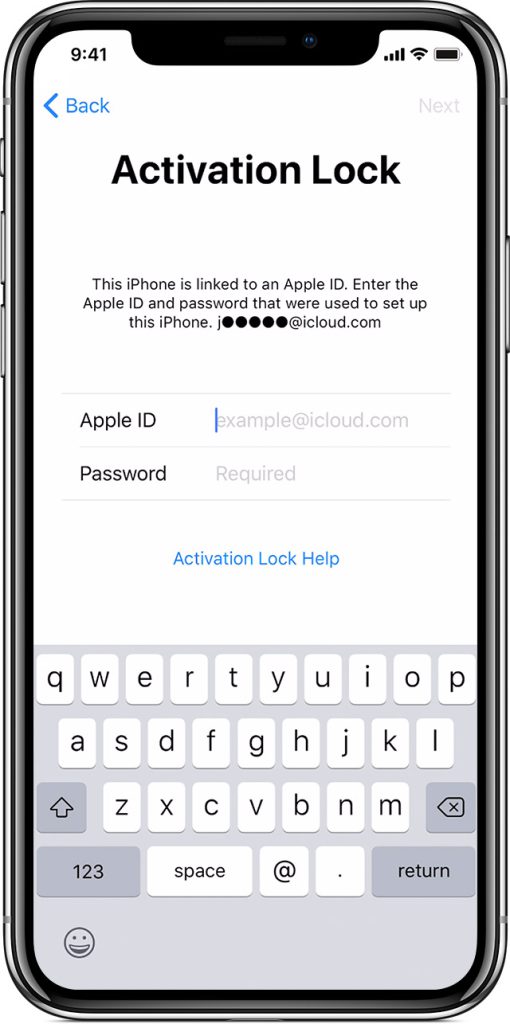
Activation Lock: You see a screen saying “This iPhone is linked to an Apple ID. Please enter the Apple ID and password of [[email protected]].” This is a theft-deterrent feature.
iTunes Lock: You see the “Connect to iTunes” screen (a cable pointing to an iTunes logo) after multiple failed passcode attempts.
Once you know your enemy, you can choose the right weapon.
2. How to Unlock a Screen Passcode Locked iPhone?
This is the most common and frustrating lock. You’ve tapped the wrong code too many times, and your iPhone is now disabled. You have two main paths to regain access.
Method 1: Unlock iPhone Screen Lock by Tiger iOS Unlocker
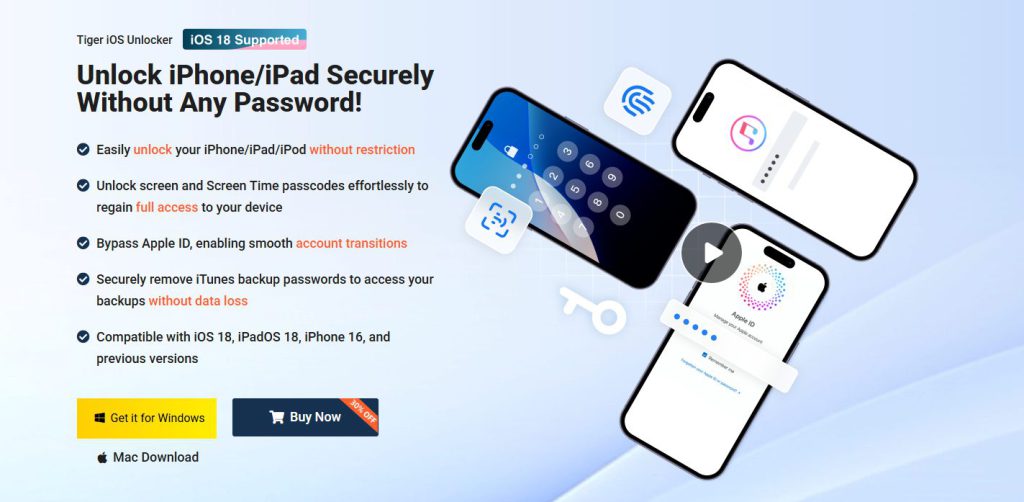
When you need a reliable, user-friendly, and powerful solution without needing a computer backup, a dedicated tool like Tiger iOS Unlocker (https://www.pocketechshare.com/tiger-ios-unlocker/ )is the hottest choice. It’s designed specifically to remove screen passcodes, MDM profiles, and even Screen Time passcodes without needing iTunes.
Why it’s great:
Removes passcode without a password or iTunes.
Works even if your iPhone is disabled.
Fixes the “iPhone is unavailable” or “Security Lockout” screen.
No technical skills needed—just follow the simple on-screen steps.
How to use it:
Download and install LockWiper on your Windows or Mac computer.
Launch the program and select “Unlock Screen Passcode.”
Connect your disabled iPhone and follow the instructions to put it into Recovery Mode.
Download the firmware package specific to your iPhone model.
Click “Start Removal” to remove the passcode completely.
This process will erase your device and its passcode, allowing you to set it up as new or restore from a backup.
3. How to Unlock an Apple ID Locked iPhone?
An Apple ID lock means Find My iPhone is enabled. To remove this, you must know the Apple ID email and password. If you do:
Go to Settings > [your name].
Scroll down and tap “Sign Out.”
Enter the Apple ID password to turn off Find My iPhone.
You can now sign out and sign in with a new Apple ID.
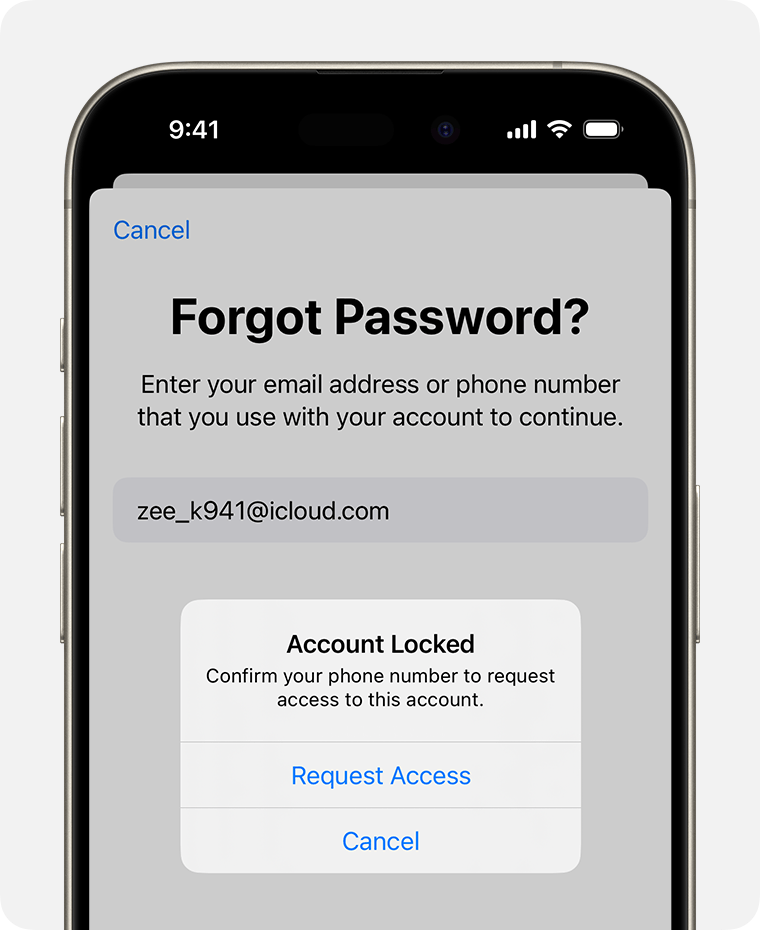
If you forgot the password, use Apple’s official recovery at iforgot.apple.com to reset it.
4. How to Unlock an Activation Lock Locked iPhone?
Activation Lock is Apple’s anti-theft feature. The rules are strict:
With Proof of Purchase: If you have the original sales receipt showing the device’s serial number, Apple Support can remove the Activation Lock for you. This is the only official method.
Without Proof of Purchase: The device is essentially a brick. No software tool can legitimately bypass Activation Lock, as it is server-side by Apple. Be wary of any service claiming otherwise, as it is likely a scam.
Conclusion
Always prioritize official methods first. For a disabled screen,Tiger iOS Unlocker offers a fantastic balance of power and ease of use. For ownership locks (Apple ID/Activation), always seek resolution through the original owner or Apple with proof of purchase. Stay safe, back up your data regularly, and enjoy your unlocked iPhone!