Forgetting your iPhone passcode can feel like hitting a wall. Face ID or Touch ID may work for a while, but iPhone will still ask for the passcode after a restart, software update, long period of inactivity, or several failed biometric attempts.
The short answer is: if you truly cannot remember the iPhone lock screen passcode, you usually need to erase the device and set it up again. If you have an iCloud or computer backup, you can restore your data after the device is unlocked.
This guide walks through the safest ways to regain access to your own iPhone, including Apple’s official options and a guided tool option with Tiger iOS Unlocker.
Important: Do not use any unlock method on a device you do not own or do not have permission to manage. Removing a screen passcode usually erases the device.
Why You Still Need the Passcode Even with Face ID or Touch ID
Face ID and Touch ID are convenient, but they do not replace the screen passcode. iPhone may require the passcode when:
- The device restarts.
- Face ID or Touch ID fails several times.
- The device has not been unlocked for a while.
- You change security settings.
- iOS requires extra verification.
If you forgot the passcode, guessing repeatedly can make the situation worse. Too many wrong attempts may lead to messages like iPhone Unavailable or iPhone is Disabled.
Related guide: iPhone Unavailable? How to Fix It Without Passcode
Method 1: Try the Correct Passcode Carefully
Before erasing anything, pause and think through passcodes you may have used before:
- Current phone unlock code
- Old phone passcode
- Family PIN or birthday pattern
- Work device PIN
- Common 4-digit or 6-digit code you use only locally
If your iPhone still allows attempts, try only the most likely passcodes. Do not keep guessing randomly. Repeated wrong attempts can extend the lockout time or make the device unavailable.
This method only works if you can remember the correct passcode. If not, move to a reset or restore option.
Method 2: Use Erase iPhone from the Lock Screen
Some iOS versions may show an Erase iPhone option after too many failed passcode attempts. If this option appears, you may be able to erase the device directly from the lock screen.
You usually need:
- The Apple ID used on the iPhone
- The Apple ID password
- A network connection
- A backup if you want to restore data later
After erasing, you can set up the iPhone again. If you have a recent iCloud backup, choose it during setup to restore your data.
This is a convenient official option, but it is not available in every situation.
Method 3: Restore iPhone with Finder or iTunes
Apple’s computer-based method is to put the iPhone into recovery mode and restore it with Finder or iTunes.
Use Finder if you are on a Mac with macOS Catalina or later. Use iTunes on Windows or older macOS versions.
General steps:
- Connect your iPhone to a computer.
- Put the iPhone into recovery mode.
- Open Finder or iTunes.
- Choose Restore when prompted.
- Wait for the restore process to finish.
- Set up your iPhone again and restore from a backup if available.
This is an official method, but recovery mode can be confusing if you are not used to it. If the restore process takes too long or the iPhone exits recovery mode, you may need to repeat the steps.
Apple support reference: If you forgot your iPhone passcode
Method 4: Use Tiger iOS Unlocker for Guided Steps
If you want a more guided process, Tiger iOS Unlocker can help remove the screen passcode from your own iPhone or iPad.
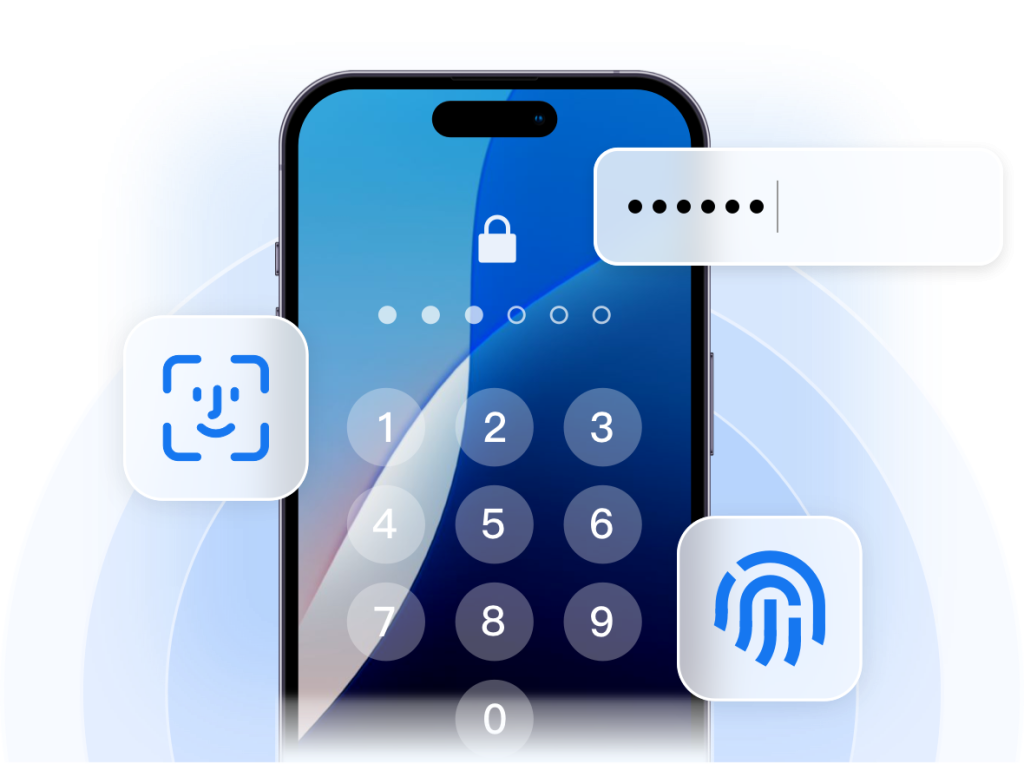
Tiger iOS Unlocker can help with:
- Forgotten iPhone screen passcode
- iPhone Unavailable or disabled screen
- Screen Time passcode
- iTunes backup encryption password
- Apple ID removal on personal devices in supported cases
How it works:
- Download and install Tiger iOS Unlocker on Windows or Mac.
- Connect your iPhone or iPad to the computer.
- Choose the screen passcode unlock mode.
- Follow the guided steps to complete the process.
Free Download Tiger iOS Unlocker
For personal devices only. Do not use this software on devices you do not own or do not have permission to manage.
Will You Lose Data If You Forgot the iPhone Passcode?
In most cases, yes. If you cannot remember the screen passcode, removing it usually requires erasing the iPhone.
You may still be able to restore your data if:
- You have an iCloud backup.
- You have a Finder or iTunes backup.
- Your photos, contacts, notes, or messages were synced with iCloud.
- Your app data is stored in the cloud.
Before starting a restore or unlock process, check whether you have a recent backup. After the iPhone is erased, you can restore data during setup.
Which Method Should You Choose?
Choose Erase iPhone if the option appears on the lock screen and you know the Apple ID password.
Choose Finder or iTunes restore if you prefer Apple’s official computer-based method and can follow recovery mode steps.
Choose Tiger iOS Unlocker if you want guided steps for screen passcode removal, iPhone Unavailable, disabled iPhone, Screen Time passcode, or iTunes backup password issues.
FAQ
Can I unlock my iPhone if I forgot the passcode?
Yes, but if you cannot remember the passcode, you usually need to erase the iPhone and set it up again. You can restore your data afterward if you have a backup.
Can I unlock iPhone without losing data?
Usually no. Removing a forgotten iPhone screen passcode typically erases the device. A backup is the best way to recover your data afterward.
Can Apple tell me my iPhone passcode?
No. Apple cannot tell you the forgotten screen passcode. Apple’s official guidance is to erase and restore the device.
What happens if I enter the wrong passcode too many times?
Your iPhone may show a lockout timer, iPhone Unavailable, or iPhone is Disabled. If this happens, you may need to erase or restore the device.
Is Tiger iOS Unlocker safe to use?
Tiger iOS Unlocker is designed to help users manage their own iPhone, iPad, or iPod touch. Use it only on devices you own or have permission to manage.
Ready to Regain Access to Your iPhone?
Forgot your iPhone passcode and cannot get past the lock screen? Tiger iOS Unlocker can guide you through the screen passcode removal process on Windows or Mac.