Seeing “iPhone Unavailable” on the lock screen can be stressful, especially when you need to use the device right away. This message usually appears after too many incorrect passcode attempts. In some cases, the iPhone may show a timer. In other cases, it may stay unavailable until you erase and restore the device.
This guide explains what “iPhone Unavailable” means, what Apple’s official options are, and how Tiger iOS Unlocker can help you regain access to your own iPhone or iPad with guided steps.
Important: Removing a screen passcode usually erases the device. If you have an iCloud or computer backup, you can restore your data after the device is unlocked.
Why Does My iPhone Say “iPhone Unavailable”?
Your iPhone may show the unavailable screen after repeated incorrect passcode entries. This is a security feature designed to protect your personal data.
Common reasons include:
- You forgot the screen passcode.
- A child or someone else entered the wrong passcode many times.
- Face ID or Touch ID stopped working and you cannot remember the passcode.
- The device was unused for a long time and the passcode was forgotten.
- You bought or inherited a device and cannot access the lock screen.
If the screen shows a countdown, wait until the timer ends and try the correct passcode again. If there is no timer or you still cannot remember the passcode, you will usually need to erase the iPhone and set it up again.
Method 1: Use Apple’s “Erase iPhone” Option
On some iOS versions, the unavailable screen may show an Erase iPhone option. If available, this can erase the device directly from the lock screen.
You may need:
- The Apple ID signed in on the device
- The Apple ID password
- An internet connection
- A recent iCloud backup if you want to restore data later
This is the simplest official method when the option appears on the lock screen. However, it may not be available on every device or iOS version.
Method 2: Restore the iPhone with Finder or iTunes
You can also restore the device using a computer.
On Mac with macOS Catalina or later, use Finder. On Windows or older macOS versions, use iTunes. The general process is:
- Connect your iPhone to the computer.
- Put the iPhone into recovery mode.
- Choose Restore when Finder or iTunes detects the device.
- Wait for the restore process to complete.
- Set up the iPhone again and restore from a backup if available.
This method is official, but some users find recovery mode confusing. If the device exits recovery mode or the restore fails, you may need to repeat the steps.
Method 3: Fix iPhone Unavailable with Tiger iOS Unlocker
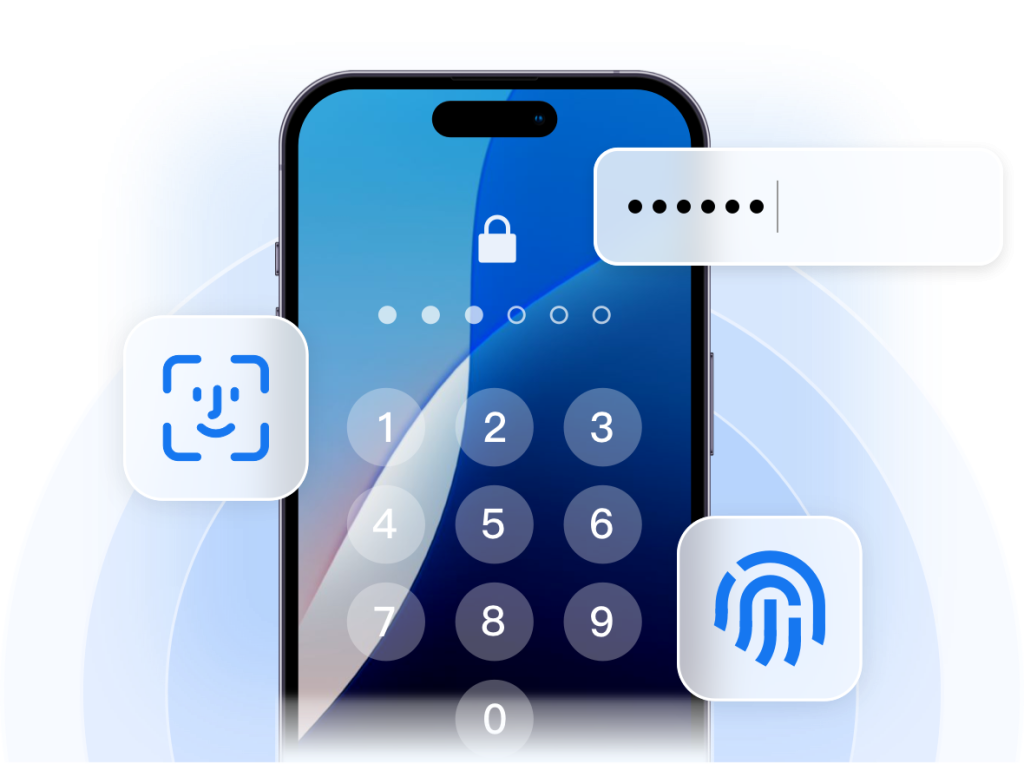
If you want a guided process, Tiger iOS Unlocker can help remove the screen passcode from your own iPhone or iPad.
Tiger iOS Unlocker can help with:
- iPhone Unavailable screen
- Disabled iPhone or iPad
- Forgotten 4-digit or 6-digit passcode
- Touch ID or Face ID lock screen issues
- Screen Time passcode
- iTunes backup encryption password
How it works:
- Download and install Tiger iOS Unlocker on your Windows PC or Mac.
- Connect your iPhone or iPad to the computer.
- Choose the screen passcode unlock mode.
- Follow the guided steps to complete the unlock process.
Free Download Tiger iOS Unlocker
For personal devices only. Do not use this software on devices you do not own or do not have permission to manage.
Will Fixing iPhone Unavailable Erase Data?
In most cases, yes. Removing an iPhone screen passcode usually requires erasing the device. This is true for Apple’s restore method and most iPhone unlock tools.
You may be able to recover your data if:
- You have an iCloud backup.
- You have a Finder or iTunes backup.
- Your photos, contacts, notes, and other data were synced with iCloud.
Before starting, check whether you have a recent backup available. After the iPhone is erased and unlocked, you can restore data during setup.
Which Method Should You Choose?
Choose Erase iPhone if the option appears on your lock screen and you know your Apple ID password.
Choose Finder or iTunes restore if you prefer Apple’s official computer method and are comfortable with recovery mode.
Choose Tiger iOS Unlocker if you want guided steps and a dedicated tool for iPhone unavailable, disabled iPhone, Screen Time passcode, or iTunes backup password issues.
FAQ
Can I fix iPhone Unavailable without a computer?
Sometimes. If the unavailable screen shows an Erase iPhone option, you may be able to erase the device without a computer. You will need the Apple ID password connected to the device.
Can I unlock iPhone Unavailable without losing data?
Usually no. Removing the screen passcode typically erases the iPhone. If you have an iCloud or computer backup, you can restore your data after unlocking.
Why does my iPhone say Unavailable instead of Disabled?
Newer iOS versions may show “iPhone Unavailable” instead of the older “iPhone is disabled” message. Both messages usually mean too many incorrect passcode attempts.
Is Tiger iOS Unlocker for any iPhone?
Tiger iOS Unlocker is designed to help users manage and regain access to their own iPhone, iPad, or iPod touch. It should not be used on devices you do not own or do not have permission to manage.
Can I try Tiger iOS Unlocker before buying?
Yes. You can download the free trial to check the interface and supported unlock modes before purchasing.
Final CTA
If your iPhone is stuck on the unavailable screen and you cannot remember the passcode, Tiger iOS Unlocker can guide you through the unlock process on Windows or Mac.