Line is a popular messaging app that allows users to connect with friends and family through text, voice calls, and video chats. If you’re a big fan of Line, chances are you have produced a lot of memorable chat history with your loved ones. However, there are times when you may accidentally lose your Line chat history due to various reasons such as accidental deletion, device malfunction, or software issues. But don’t panic! In this article, we will guide you through the process of restoring your Line chat history with or without backup.
Part 1: Restoring Line Chat History via iCloud

Part 2: Restoring Line Chat History via iTunes
If you have backed up your Line chat history using iTunes, you can follow these steps to restore it:
-
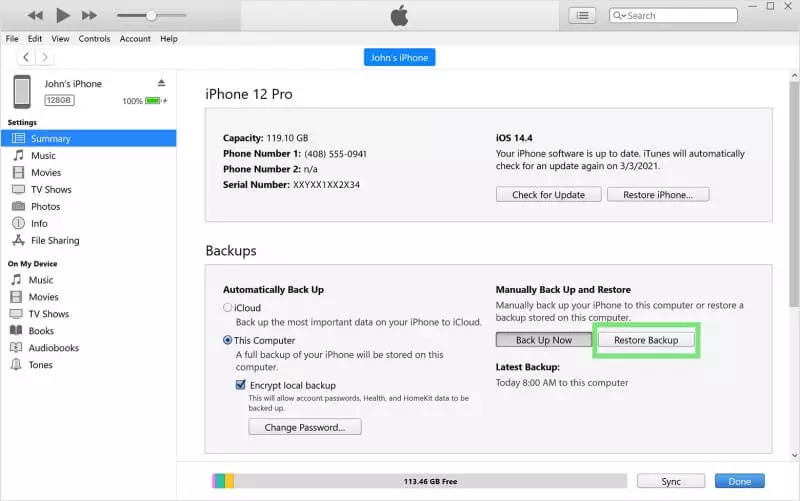
- Connect your iPhone to your computer and launch iTunes.
- Select your iPhone from the list of devices in iTunes.
- Click on the “Summary” tab and then click on “Restore Backup.”
- Choose the backup file that contains your Line chat history and click on “Restore.”
- Wait for the restore process to complete, and your Line chat history will be restored to your iPhone.
Part 3: Restoring Line Chat History without Backup using Tiger Data Recovery
If you don’t have a backup of your Line chat history, there is still a way to recover it using a third-party data recovery tool like Tiger Data Recovery. Here’s how you can do it:
-
- Download at official website and install Tiger Data Recovery on your computer.
- Connect your iPhone to the computer using a USB cable.
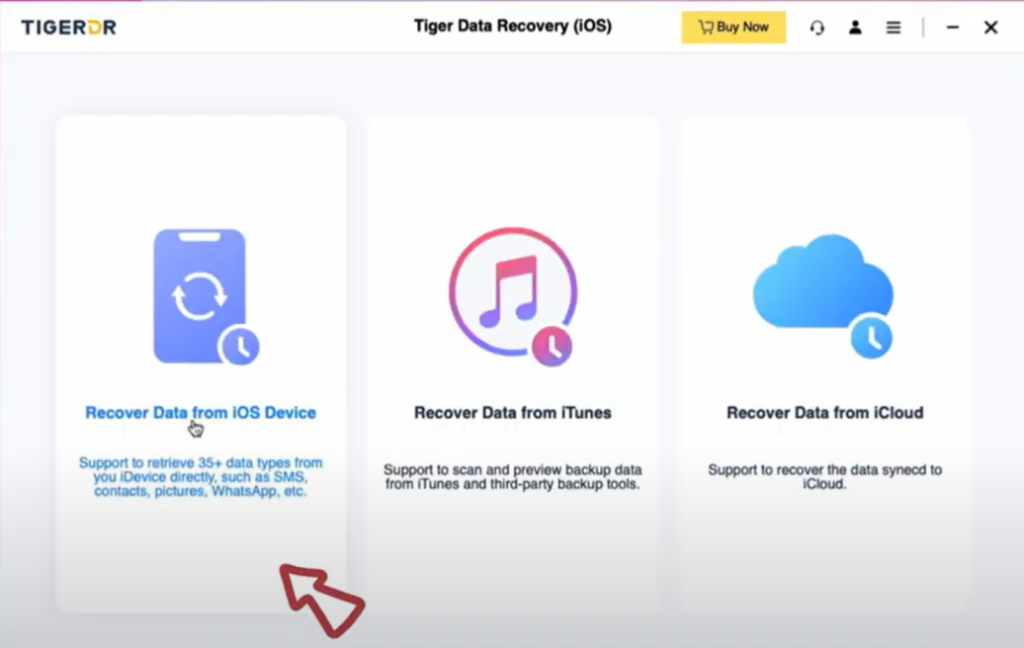
- Launch Tiger Data Recovery and select the “Recover from iOS Device” option.
-
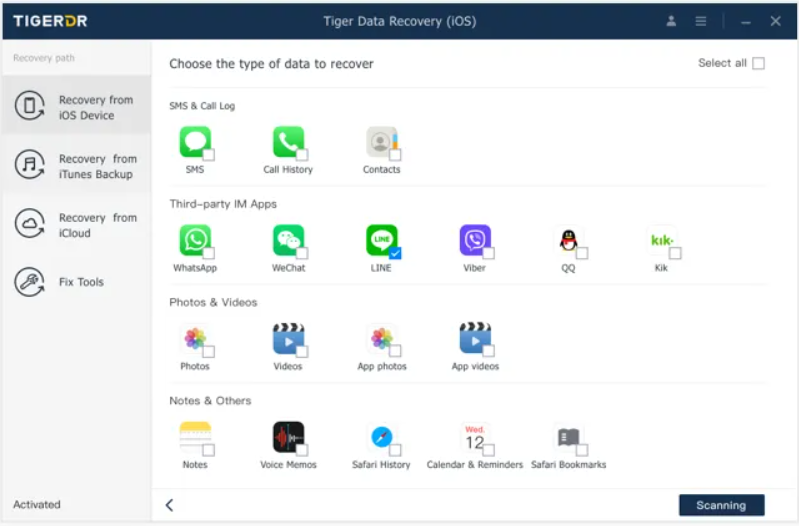
- The software will scan your iPhone for deleted Line chat history.
-
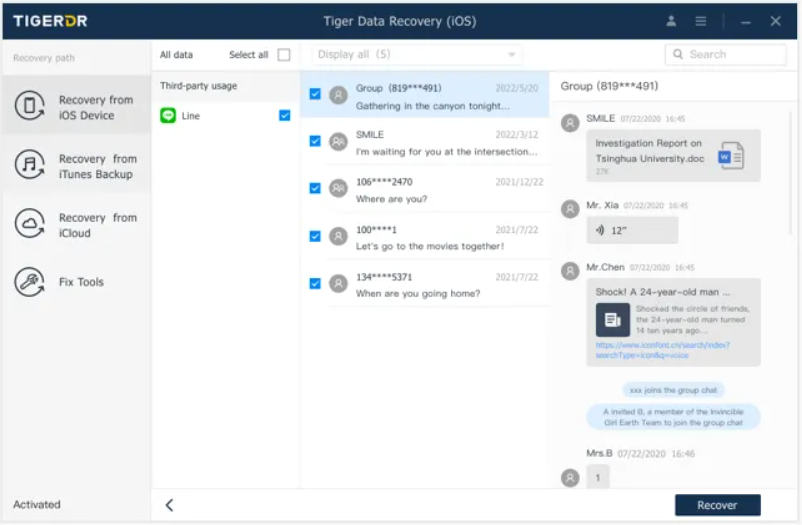
- Once the scan is complete, you can preview the recoverable Line chat history.
- Select the chat history you want to restore and click on the “Recover” button.
Bonus Tip: Restoring Line Chat History on Android
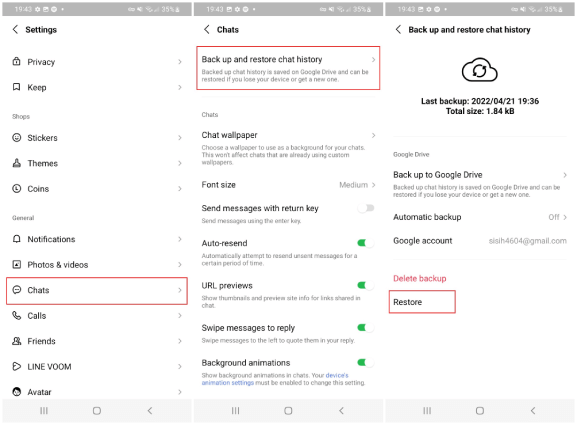
If you’re an Android user, you can also restore your Line chat history by following these steps:
-
- Open the Line app on your Android device.
- Go to the “Home” tab and tap on “Settings”.
- Tap on “Chats”, then “Back up and restore chat history”.
- Tap on “Restore” to restore your Line chat history from the backup.
Conclusion
Line is a convenient messaging app that allows you to stay connected with your friends and family. The chat history created during these connections is often memorable and worth preserving. We recommend regularly backing up your Line chat history using tools like Tiger Data Backup or other cloud drives. However, if you ever lose your Line chat history, you can follow the steps mentioned in this article to restore it with or without a backup. Remember to take proactive measures to protect your data and enjoy a seamless Line messaging experience.