Keeping your iPhone updated is crucial for maintaining performance and security, but what happens when your WiFi connection is unreliable or unavailable? Fortunately, there are several ways to update your iPhone without relying on a WiFi network.
💡 Important: Check Your Storage Before Recovery or Update
Whether you’re updating iOS or recovering lost data, enough free storage is the first thing to check. The update itself downloads 1-3GB, but the install needs extra working room — keep at least 5GB free to avoid errors.
We recommend using our Photo Recovery & iPhone Cleanup tool to analyze your disk and safely remove system cache, large videos, and duplicate files. It’s the most reliable way to ensure a smooth update and protect your device’s performance.
In this Article
Toggle1. Use Cellular Data for Updates
Updating your iPhone via cellular data is the most straightforward method when WiFi isn’t available. Here’s how:
- Check Data Allowance: Ensure your data plan can handle the update, as iOS updates typically require 1-3GB of data.
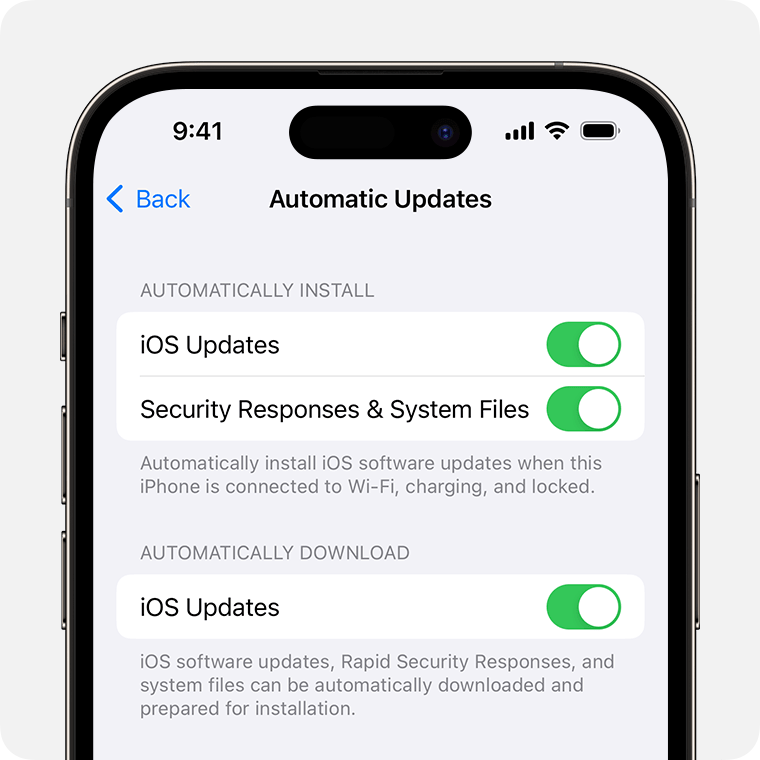
- Enable Cellular Data: Go to Settings > Cellular and toggle on Cellular Data.
- Start the Update: Navigate to Settings > General > Software Update, and tap “Download and Install.”
- Ensure Battery Charge: Keep your iPhone charged to at least 50% to avoid any interruptions during the update.
2. Update via Wired Connection
If you lack sufficient cellular data, updating your iPhone through a wired connection to a computer is an excellent alternative:
- Connect Your iPhone: Use a USB cable to connect your iPhone to your computer.
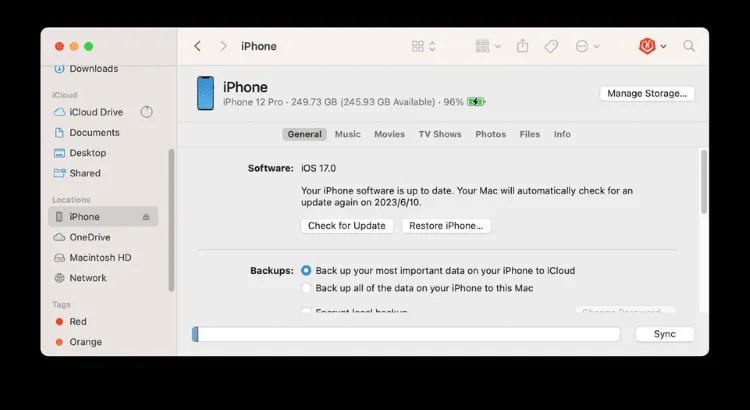
- For Windows/macOS Mojave (10.14) or Earlier: Open iTunes and select your device. In the Summary tab, click “Check for Update.”
- For macOS Catalina (10.15) or Later: Open Finder, select your device under Locations, and click “Check for Update.”
- Follow On-Screen Instructions: Complete the update process as prompted.
3. Manual Update with IPSW Firmware
For advanced users, manually updating your iPhone using an IPSW firmware file is another viable option:
- Download the IPSW File: Search for the correct IPSW file for your iPhone model and iOS version from a trusted source.
- Connect to Computer: Use a USB cable to connect your iPhone to your computer.
- Open iTunes or Finder: Depending on your operating system, open iTunes or Finder.
- Initiate the Manual Update: Hold down the Shift (Windows) or Option (Mac) key while clicking “Check for Update.”
- Select IPSW File: Choose the downloaded IPSW file to begin the update.

FAQ
Apple restricts large OTA downloads on 4G models to protect your data plan. On 5G iPhones you’ll see a “Download Over Cellular” prompt or can enable it in Settings > Cellular.
Most full iOS updates are 1-3GB. If that’s a concern, use Method 2 (computer) — it downloads over the computer’s internet connection instead.
That’s rare, but it’s why you should back up first. If it happens, stop using the phone — recovery tools can often bring your data back if you act quickly.
Updating your iPhone without WiFi is entirely possible with these alternative methods. Whether you opt to use cellular data, a wired connection, or a manual IPSW update, it’s crucial to ensure your device is adequately charged and that you have a reliable backup of your data before starting the process. Stay proactive and keep your iPhone running smoothly, even when WiFi isn’t an option.
You May Also Like
Free up storage space when your iPhone does not have enough room to download or install an update.
Free Up iPhone Storage →Compare safe and automatic ways to protect your iPhone photos before installing a software update.
View the Backup Options →Learn what to do if your iPhone becomes unavailable, unresponsive, or inaccessible after a problem.
See the Solutions →