Let’s be honest — we’ve all been there. You go to log into Facebook and suddenly realize… you forgot your password. Whether it’s been months since you last logged in or your account was compromised, forgetting your Facebook password can feel like losing the key to your digital identity.
The good news? Resetting your Facebook password in 2025 is easier and safer than ever — even if you don’t have access to your recovery email or phone number.
Here’s a complete step-by-step guide to help you recover your Facebook account fast, with or without your usual login details.

In this Article
ToggleMethod 1: Reset Facebook Password via Email or Phone
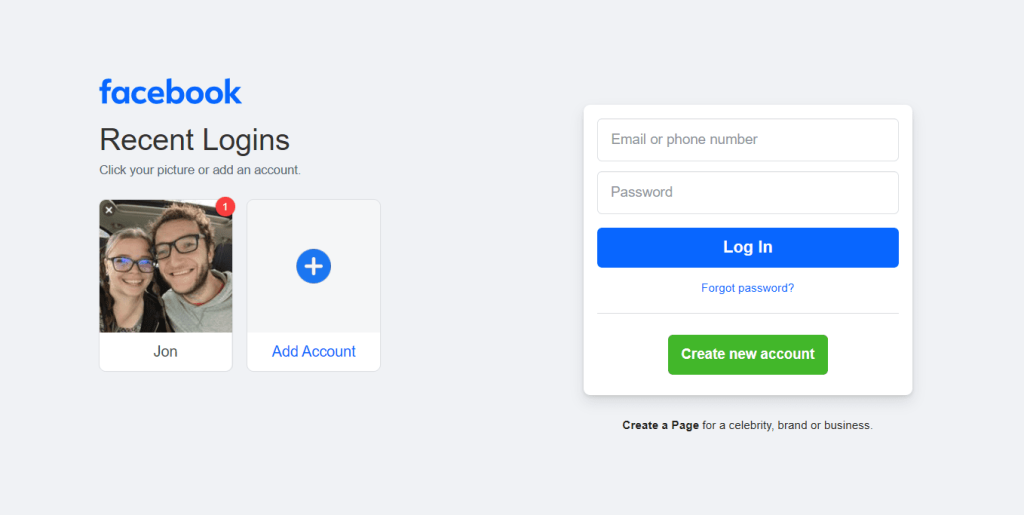
Step 1: Go to Facebook’s Password Reset Page
Visit: https://www.facebook.com/login/identify
Step 2: Enter Your Email, Phone, or Username
Type in the email or phone number linked to your Facebook account.
If you don’t remember, try clicking “Forgot account?” to search by name.
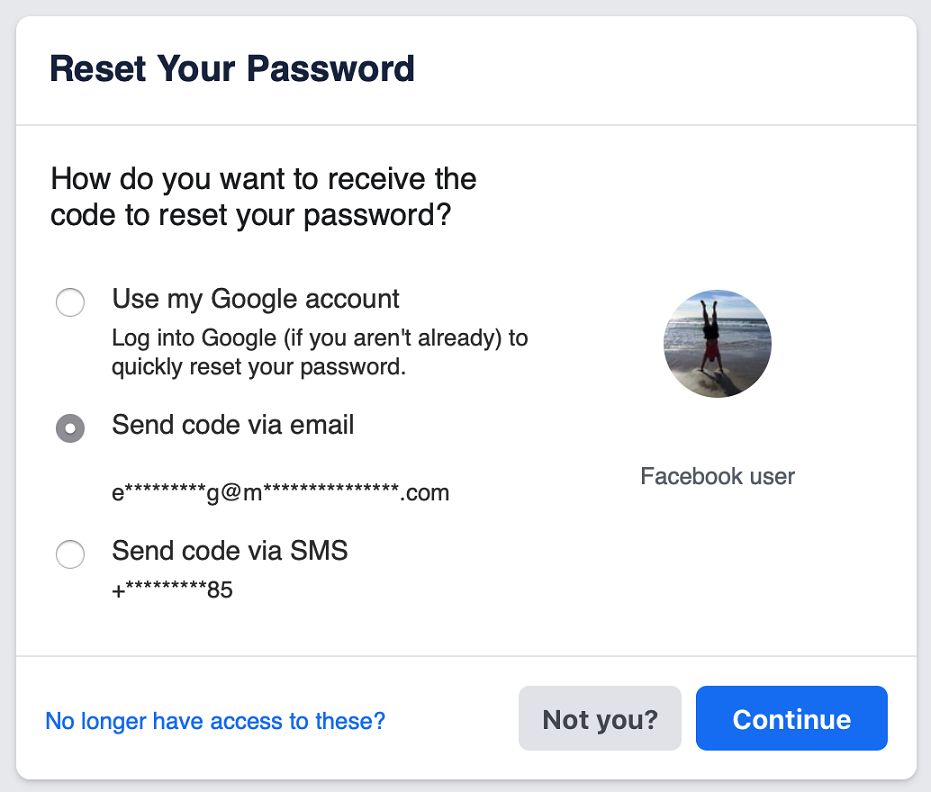
Step 3: Choose a Recovery Method
Facebook will offer options:
✅ Email – A password reset link will be sent.
✅ SMS – A 6-digit code will be sent to your phone.
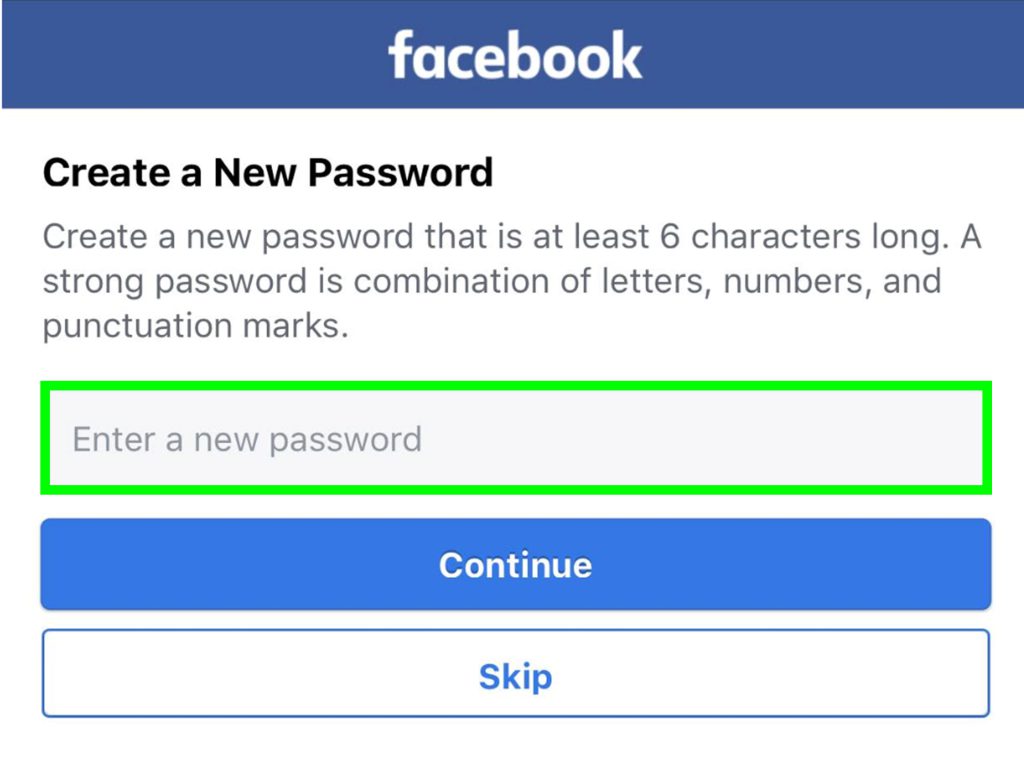
Step 4: Create a New Password
Open the email/SMS and follow the link.
Enter a strong new password (mix of letters, numbers, and symbols).
Click “Continue” to confirm.
✅ Done! You can now log in with your new password.
Method 2: Reset Facebook Password Without Email or Phone
If you lost access to your email/phone, try these steps:
Step 1: Use Trusted Contacts
Facebook allows you to select 3-5 trusted friends when setting up your account.
Go to https://www.facebook.com/login/identify and click “No longer have access to these?”
Enter a new email/phone where Facebook can contact you.
Follow instructions to verify via friends.

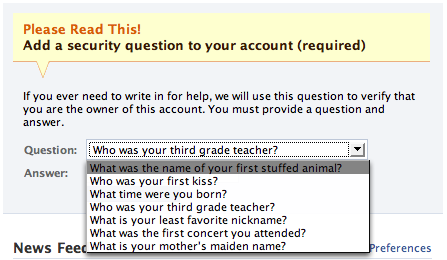
Step 2: Answer Security Questions
If you set up security questions, Facebook may ask them.
Provide correct answers to regain access.
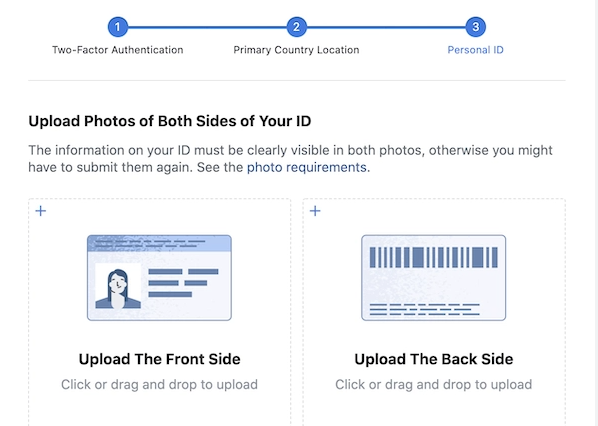
Step 3: Submit ID Verification
If all else fails, Facebook may ask for government ID (driver’s license, passport).
Upload a clear photo and wait 24-48 hours for verification.
Method 3: Using Third-Party Password Recovery Tools
If you previously saved your Facebook password on an iPhone or iPad, you may be able to recover it using password management tools. Here’s how:
Step 1: Connect Your iPhone/iPad
Use a USB cable to connect your iOS device to your computer.
Unlock your device and trust the computer if prompted.
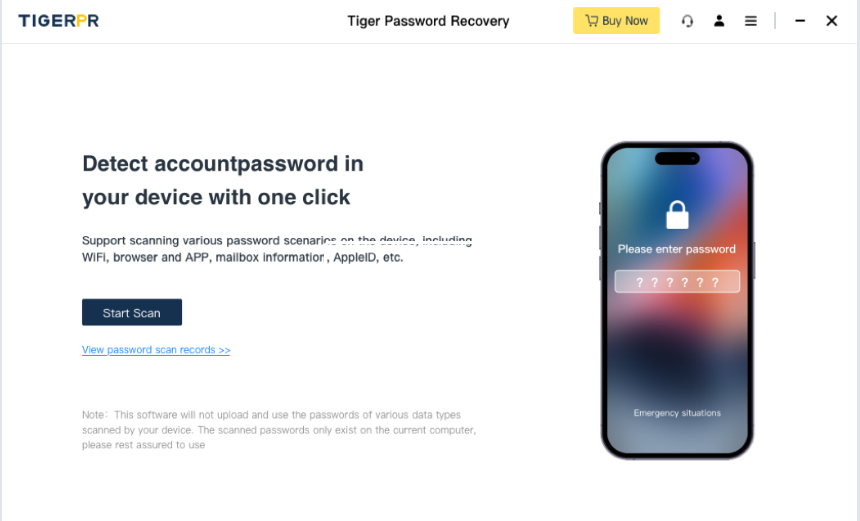
Step 2: Scan for Saved Passwords
Open a trusted password recovery tool (like iMyFone KeyGenius, EaseUS MobiUnlock, or iCloud Keychain).
Click “Start Scan” to search for stored passwords in your iPhone’s keychain.

Step 3: View or Export Facebook Password
Once the scan completes, look for Facebook in the password list.
Click “View” to reveal the password or “Export” to save it securely.
⚠️ Important Notes:
This method only works if you previously saved the password in iCloud Keychain or Safari.
Avoid untrusted third-party apps—only use reputable software to prevent data leaks.
🔗 Recommended Tool: Tiger Password Recovery(https://www.pocketechshare.com/tiger-password-recovery/)

Conclusion
Forgetting your Facebook password can be frustrating — but it doesn’t have to be permanent. With Facebook’s improved recovery tools and a little patience, you can get back into your account and secure it for good.Carefully using third-party tools as last resort. After recovering access, immediately enable two-factor authentication, update recovery options, and check active sessions for security. For additional help, visit Facebook’s Help Center or join tech support communities.