Forgot your Twitter password?
You’re not alone. Whether it’s Twitter or “X” (thanks, Elon), getting locked out of your account in 2025 can feel like losing a digital lifeline — your tweets, DMs, followers, and even business access, gone in an instant.
But don’t panic.
Here’s how to reset your Twitter password quickly, even if you don’t have access to your email or phone number.

In this Article
ToggleMethod 1: Reset Your Twitter Password via Email or Phone
Step 1: Go to the Twitter Login Page
Visit the official Twitter password reset link:
👉 https://twitter.com/account/begin_password_reset
(Pro Tip: Always check the URL to avoid phishing scams!)

Step 2: Enter Your Email, Phone, or Username
Email address linked to your account
Phone number associated with your profile
Twitter username
Click “Search” to proceed.
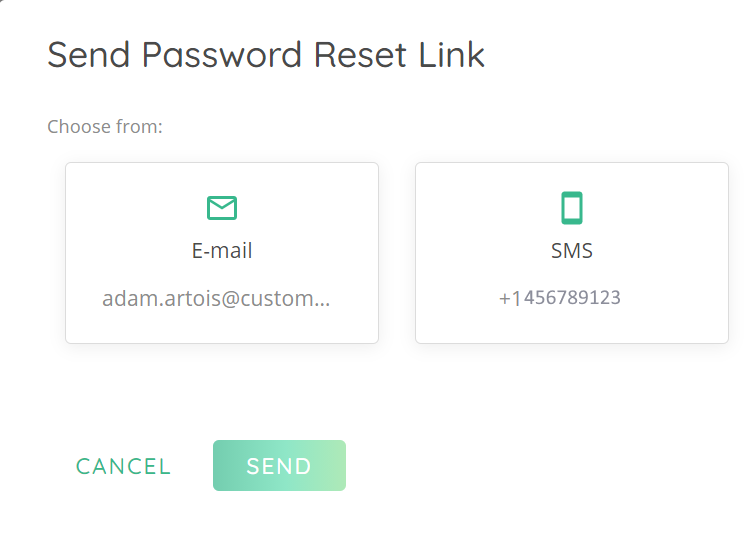
Step 3: Choose Where to Receive the Reset Link
Email reset link (Check your inbox, including spam)
Text message (SMS) code (If your phone is linked)
Pick the most convenient option and follow the instructions.
Step 4: Create a New Password
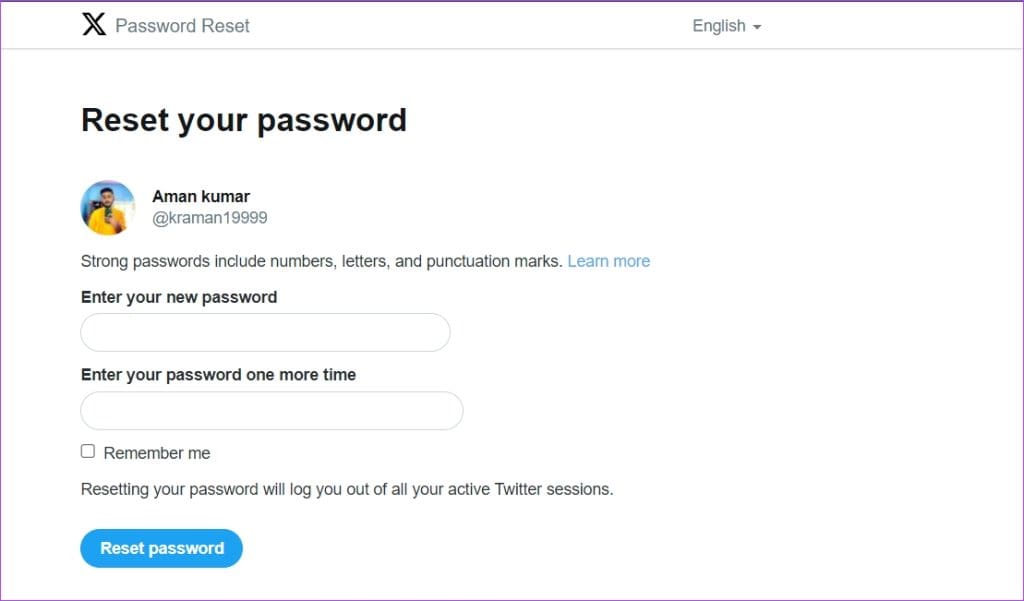
Once you verify your identity:
Enter a new, secure password (use a mix of letters, numbers, and symbols)
Avoid common passwords like “123456” or “password”
Consider using a password manager for better security
Click “Reset Password”, and you’re done!
Method 2:Twitter Support request
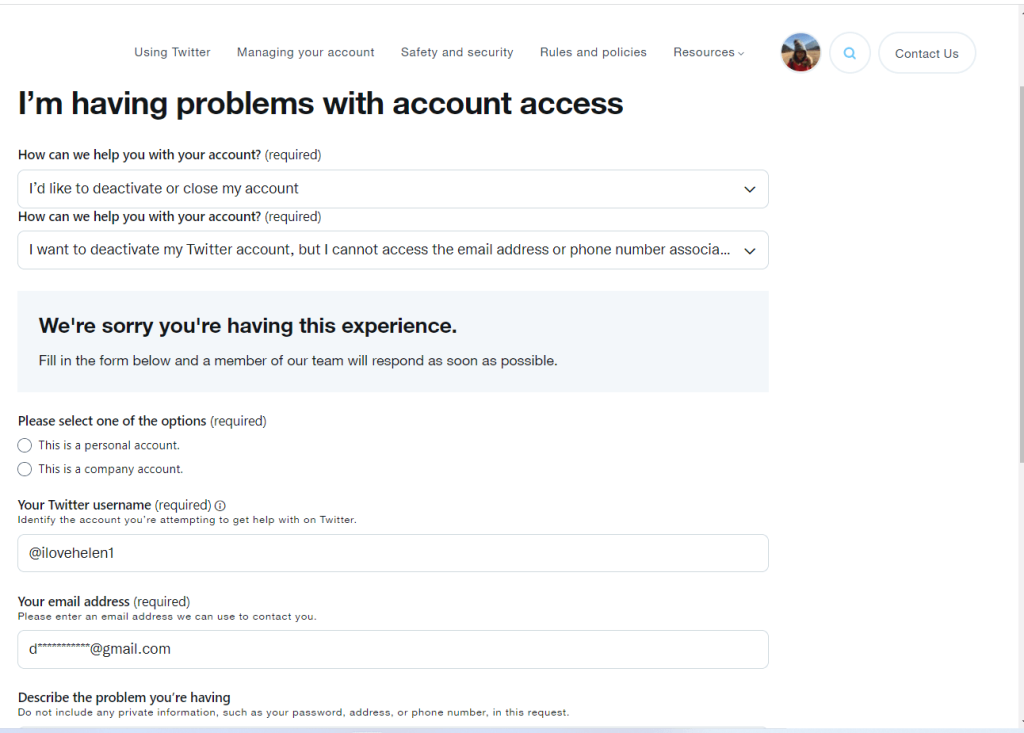
If you lost access to both your email and phone number, you’ll need to submit a Twitter Support request:
Choose “I can’t access the email address or phone number associated with my account”
Fill in your account details and submit the form
Twitter will contact you with next steps — usually within 24–48 hours
Method 3: Using Third-Party Password Recovery Tools
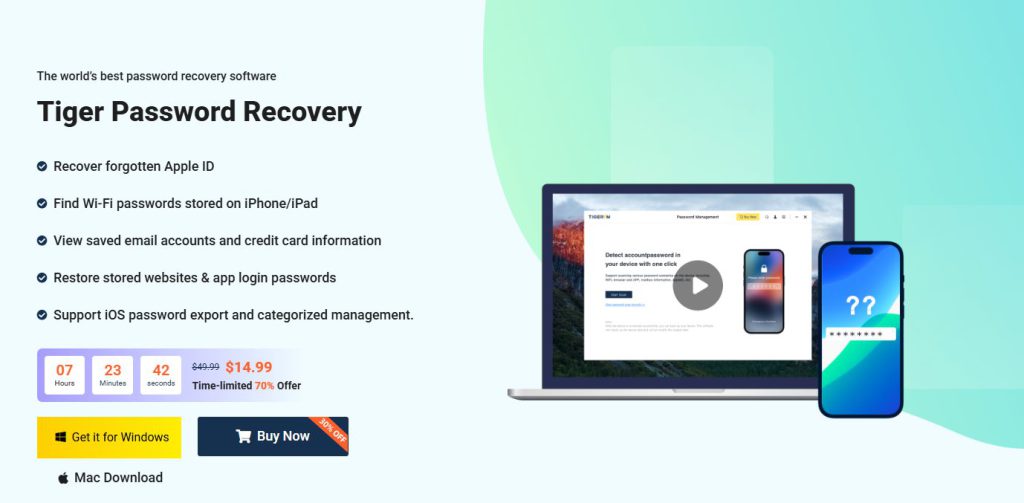
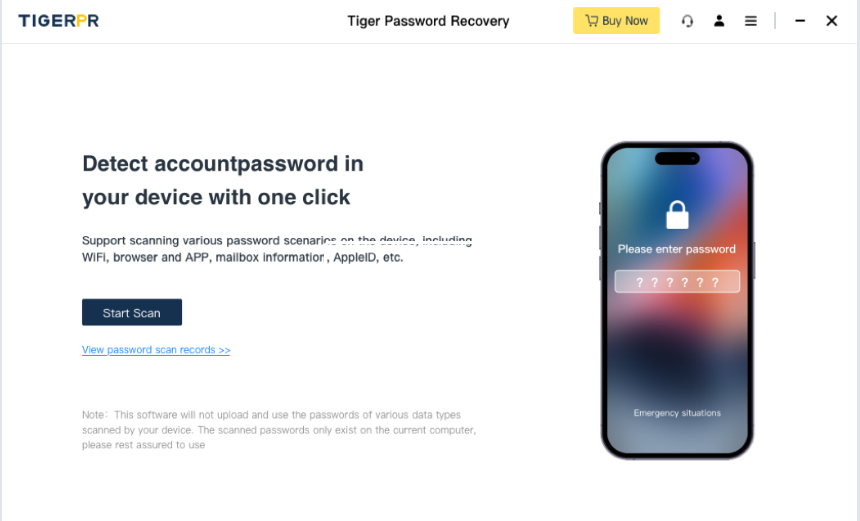
Step 1: Download and Install Tiger Password Recovery
Go to the official website and download Tiger Password Recovery on your Windows PC.
It’s lightweight
100% safe
No technical skills required
👉 Once downloaded, install and open the software.
Step 2: Launch the Scan
Click “Start Scan” — the software will automatically search your system for saved passwords from:
Google Chrome
Microsoft Edge
Mozilla Firefox
Opera and other browsers
This takes just a few seconds.
Step 3: Find Your Twitter Login Info
Once the scan is complete, scroll through the list and look for twitter.com under the “Website” column.
You’ll see:
Your saved username
Your recovered password (in plain text)
The browser where it was stored
👉 Click “Copy” to save your Twitter password.
This method only works if you previously saved the password in iCloud Keychain or Safari.
Avoid untrusted third-party apps—only use reputable software to prevent data leaks.
🔗 Recommended Tool: Tiger Password Recovery(https://www.pocketechshare.com/tiger-password-recovery/)
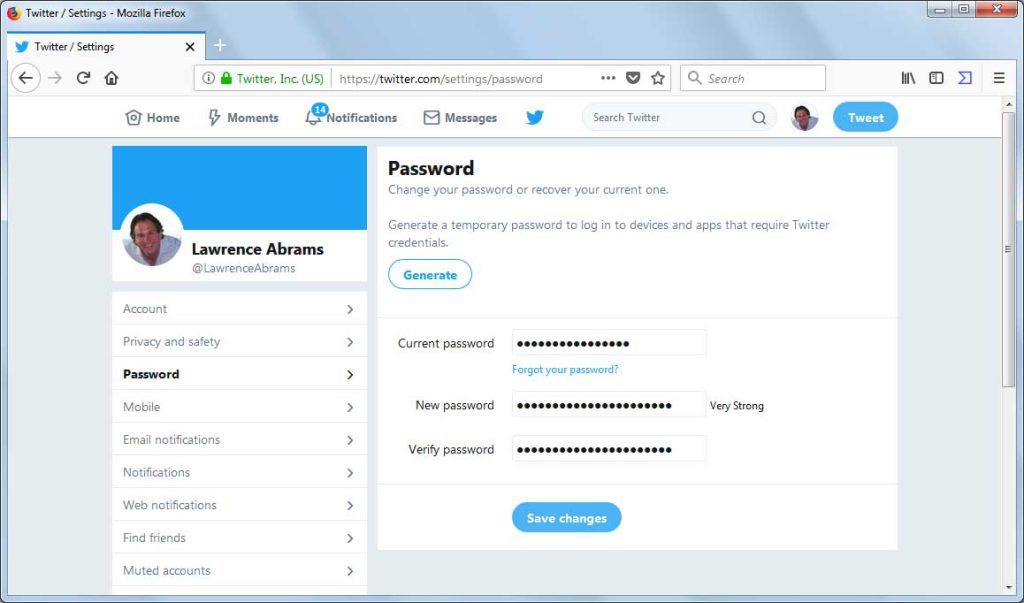
Step 4: Log Back Into Twitter
Now go to twitter.com or open the app, and use your recovered username and password to log in — no need for email or SMS reset!
Conclusion
Forgetting your Twitter password doesn’t mean losing your account.
Use Twitter’s official reset method if you still have access to your email or phone.
Use Tiger Password Recovery for a fast, no-wait solution — especially if your browser has your saved login.
Both methods are simple, safe, and take just minutes. Now go reclaim your Twitter and keep tweeting!