If you’ve entered the wrong passcode too many times, your iPhone will lock itself for increasing time intervals — and if you keep trying, it may even disable completely. Don’t panic! In this guide, we’ll show you exactly how many attempts you have, the best methods to unlock your device, and how to prevent data loss during the process.

In this Article
ToggleHow Many Attempts to Unlock iPhone?
Apple’s security system allows 6 incorrect passcode attempts before a temporary lock kicks in. The lock times are:
6 wrong tries → iPhone locked for 1 minute
7 wrong tries → Locked for 5 minutes
8 wrong tries → Locked for 15 minutes
9 wrong tries → Locked for 1 hour
10 wrong tries → iPhone disabled (may require erase & restore)
⚠ Tip: If you have “Erase Data” enabled in Settings, the iPhone will wipe all data automatically after 10 failed attempts.

4 Ways to Unlock iPhone after Too Many Attempts
If your iPhone says “iPhone Unavailable” or “Security Lockout”, here are 4 proven ways to get back in.
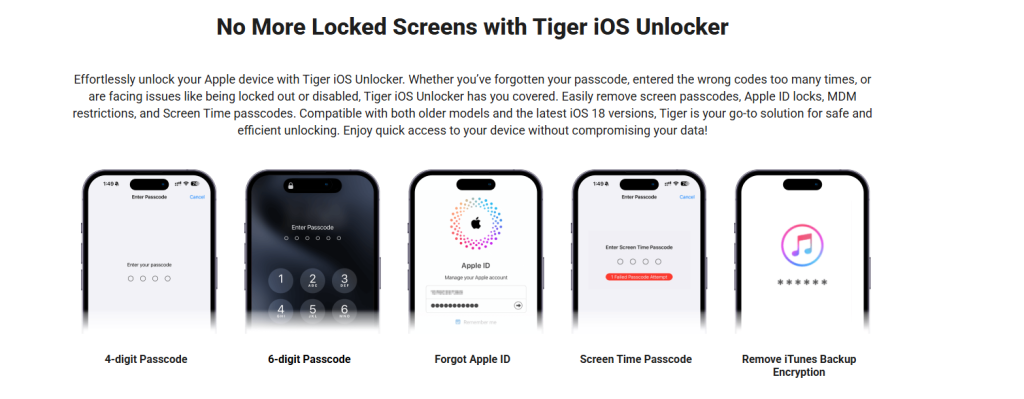
Way 1: Remove iPhone Lockout Times Using Tiger iOS Unlocker
A professional unlocking tool like Tiger iOS Unlocker can instantly remove lockout times and passcodes — even if you’ve forgotten them.
Steps:
Download & install Tiger iOS Unlocker on your computer.(https://www.pocketechshare.com/tiger-ios-unlocker/)
Connect your locked iPhone via USB.
Choose Unlock Screen Passcode and follow the on-screen instructions.
Wait a few minutes — your iPhone will be unlocked without a passcode.
✅ Works for all iOS versions, including iOS 17/16/15.
Way 2: Remove iPhone Lock Out Times Using iTunes
If you’ve synced your iPhone with iTunes before, you can restore it without passcode.
Steps:
Open iTunes on your computer and connect your iPhone.
Select your device and click Restore iPhone.
Wait for the process to complete — your iPhone will restart without the lockout.
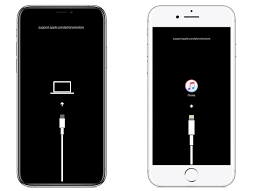
Way 3: Clear iPhone Lockout Times Using Recovery Mode
If iTunes doesn’t detect your iPhone, Recovery Mode can force a restore.
Steps:
Turn off your iPhone.
Hold the correct button for your model (Side button or Home button) while connecting to your computer.
Keep holding until the Recovery Mode screen appears.
Open iTunes or Finder, then choose Restore.
Way 4: Clear iPhone Lock Times Using iCloud
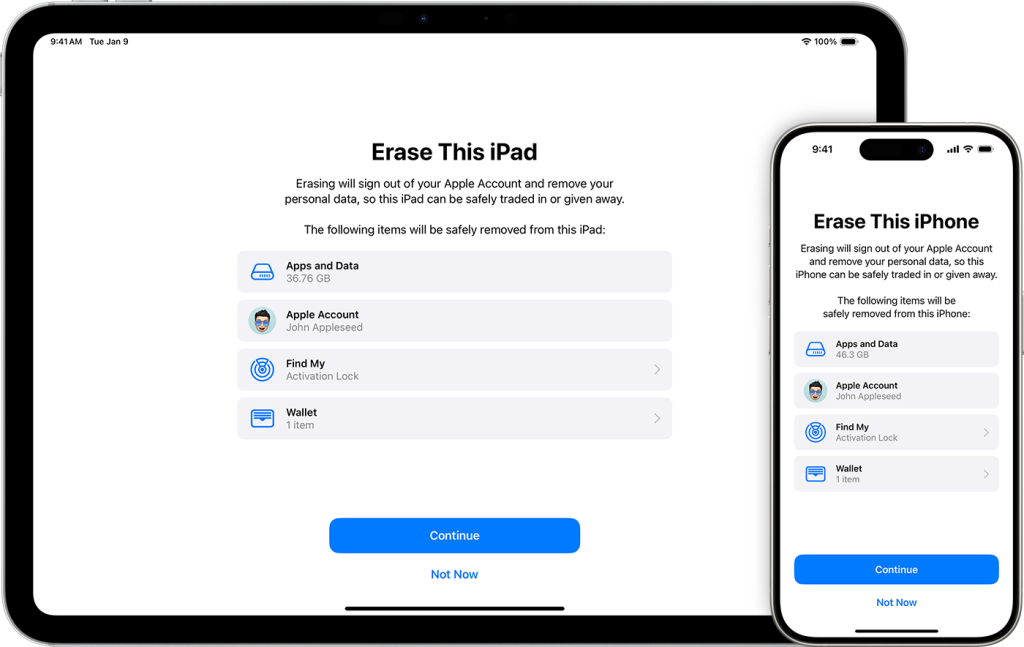
If Find My iPhone is enabled, you can erase your device remotely.
Steps:
Visit iCloud.com and log in with your Apple ID.
Click Find iPhone → Select your device.
Choose Erase iPhone.
After erasing, set it up as new or restore from backup.
How to Stop Wiping Data after Too Many Attempts
If you don’t want your iPhone to erase all data after 10 wrong passcodes:
Go to Settings → Face ID & Passcode (or Touch ID & Passcode).
Scroll down and turn Erase Data OFF.
This ensures that even after too many failed attempts, your iPhone won’t delete everything.
FAQs about Unlock iPhone after Too Many Attempts
Q1: Will unlocking erase my data?
Yes, most official methods erase your data unless you have a backup.
Q2: Can I unlock without a computer?
Yes — using iCloud or specialized mobile unlocking apps.
Q3: Is it possible to unlock without losing data?
Only if you remember the passcode or use certain advanced tools with data-preserving modes.
Conclusion
Getting locked out of your iPhone after too many attempts can be stressful, but it’s not the end of the world. Whether you use a quick unlocking tool like Tiger iOS Unlocker, restore through iTunes, boot into Recovery Mode, or erase via iCloud, there’s always a way to regain access. The key is to choose the method that best fits your situation — and to keep regular backups so you never lose important data. By taking a few preventive steps, like disabling the auto-erase option and remembering your passcode, you can make sure you’re never stuck in a lockout again.