Have you ever forgotten your WiFi password and wished Google could just tell you? Well, it might already know it!
Turns out, Google does store your WiFi password in certain cases, but finding it isn’t always straightforward. Whether you’re an Android user, a Google Fiber subscriber, or just trying to recover a lost password, this guide will show you exactly where to look and how to manage your saved WiFi credentials.
Plus, we’ll reveal a secret trick to reset your WiFi password—even if you don’t know the current one!
In this Article
ToggleDoes Google Really Save Your WiFi Password?
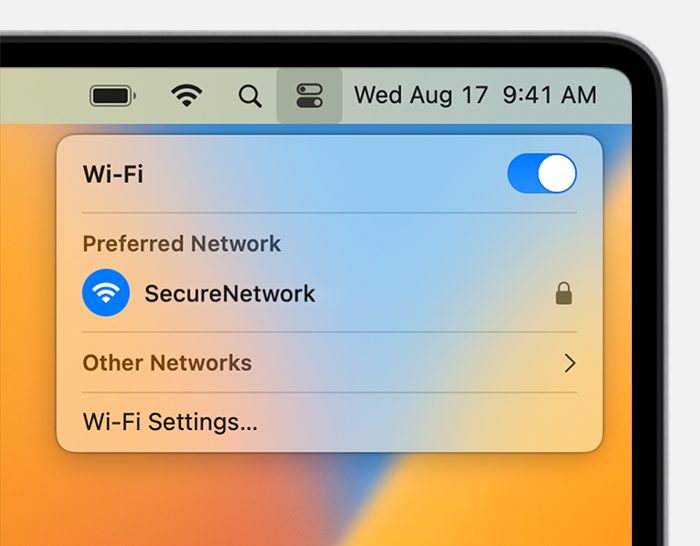
The answer: Yes, but only in specific situations. Here’s where Google might be storing your WiFi credentials:
✅ Android Backup – If you’ve enabled Google Backup on your phone, your WiFi passwords may be synced to your Google account.
✅ Google Fiber – Subscribers can find their WiFi details in their Fiber account settings.
❌ Chrome & Google Accounts – Unlike passwords for websites, Google doesn’t directly store WiFi passwords in Chrome or your main Google account.
So, if you’ve been wondering whether Google remembers your WiFi password, the key is knowing where to look.
How to Find Your Saved WiFi Password (2 Easy Methods)
🔍 Method 1: Use a WiFi Password Recovery Tool (No Root Needed!)
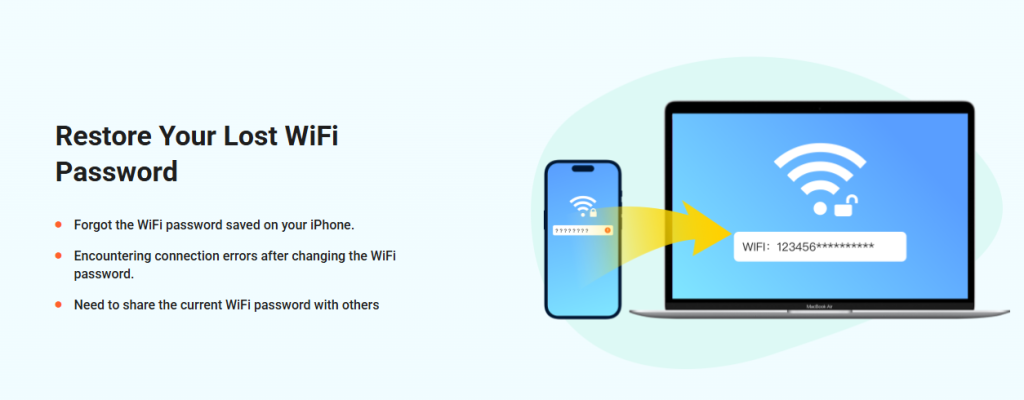
If your device backed up WiFi passwords to Google, you can retrieve them with a trusted recovery app like Tiger Password Recovery(https://www.pocketechshare.com/tiger-password-recovery/). Here’s how:
Download a reputable WiFi password recovery tool.
Connect your phone and grant necessary permissions.
Scan for saved WiFi networks linked to your Google account.
View & recover the password instantly!
⚠️ Warning: Avoid shady apps—stick to well-reviewed tools to protect your data.
📡 Method 2: Check Google Fiber Account (For Fiber Users Only)
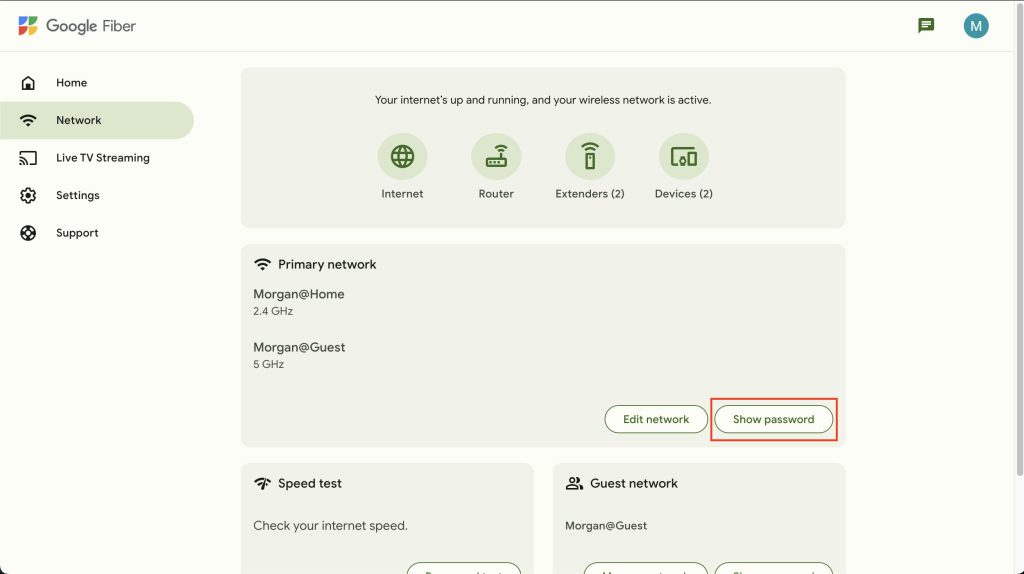
If you use Google Fiber, your WiFi password is stored in your account dashboard:
Go to Google Fiber’s official site and log in.
Click “Network” → “WiFi Settings.”
Here, you can see your current password or change it anytime.
🚨 Reset It WITHOUT Knowing the Old One!
For Most Routers:
Find the reset button (usually a tiny hole on the back).
Press & hold for 10-30 sec until lights flash.
Log in using default credentials (check the router label).
Set a new WiFi name & password in settings.
For Google Fiber Users:
Log in to your Google Fiber account.
Go to “WiFi Settings” → “Change Password.”
Enter a new password and save changes instantly!
🔒 Pro Tip: Stop Google from Saving Your WiFi Password
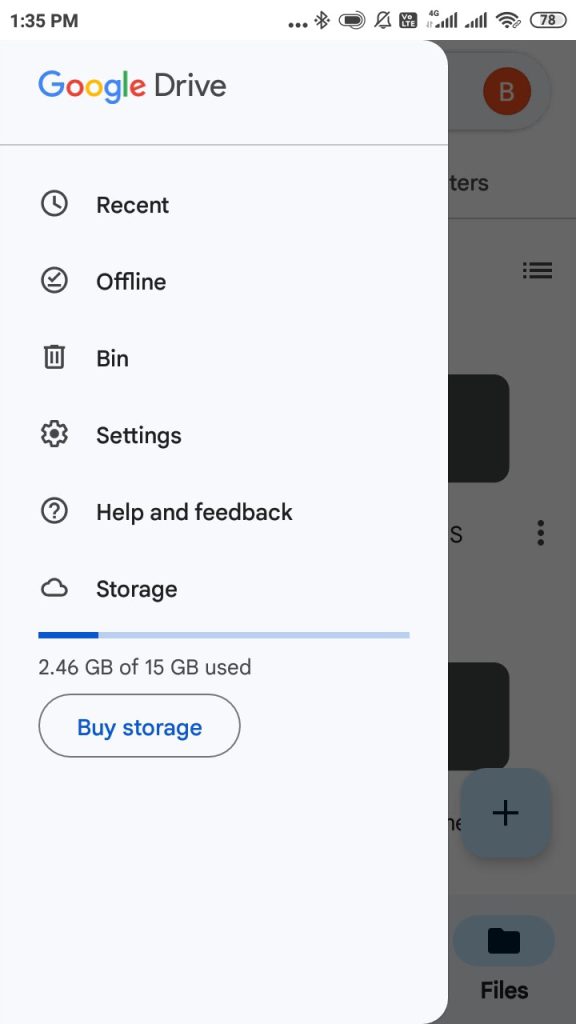
If you don’t want Google to store your WiFi details, disable backup on Android:
Go to Settings → Google → Backup.
Toggle off “Back up to Google Drive.”
This prevents future WiFi passwords from being saved—but won’t delete existing backups.
Conclusion
Google can be a lifesaver when you’ve forgotten your WiFi password — but only if you’ve synced your device or use Google Fiber/Google Home.
If that’s not the case, a recovery tool or quick router reset will have you back online in no time.