Accidentally set a complicated Screen Time passcode and forgot it immediately? Locked out forever because your kid entered the wrong password too many times? Don’t rush to a repair shop and waste money! This ultimate guide to recovering your Screen Time passcode covers everything from simple to last-resort methods. One of them will definitely save you—bookmark and share this now!
In this Article
ToggleUnderstanding Screen Time Passcode—Why Is It So Tricky?
First, it’s important to understand what you’re dealing with. The Screen Time passcode is completely separate from your device’s lock screen passcode.
Highly Secure: Apple uses strong encryption for this passcode to protect privacy and ensure parental controls remain effective. It is not synced to iCloud, and Apple’s servers do not store it, meaning even Apple support cannot directly recover it for you.
Lockout Risk: Entering the wrong passcode multiple times will temporarily disable attempts or even completely lock you out of the Screen Time feature, preventing any changes to settings.
This is why forgetting it becomes such a headache. But don’t worry—the methods below are your lifelines.
3 Easy Ways to Recover Your Screen Time Passcode
Method 1: Try Commonly Used Passcodes (Worth a Shot)
This might sound obvious, but it’s a common solution. Take a moment to think:
Did you set the same passcode as your lock screen code?
Could it be your child’s birthday, student ID, or a simple combination (e.g., 1234, 0000)?
Is it a 4-digit version of one of your frequently used passwords?
Pros: Zero cost, instant solution.
Cons: Success depends entirely on luck.
Method 2: Reset via Apple ID (The Official Recommended Approach)
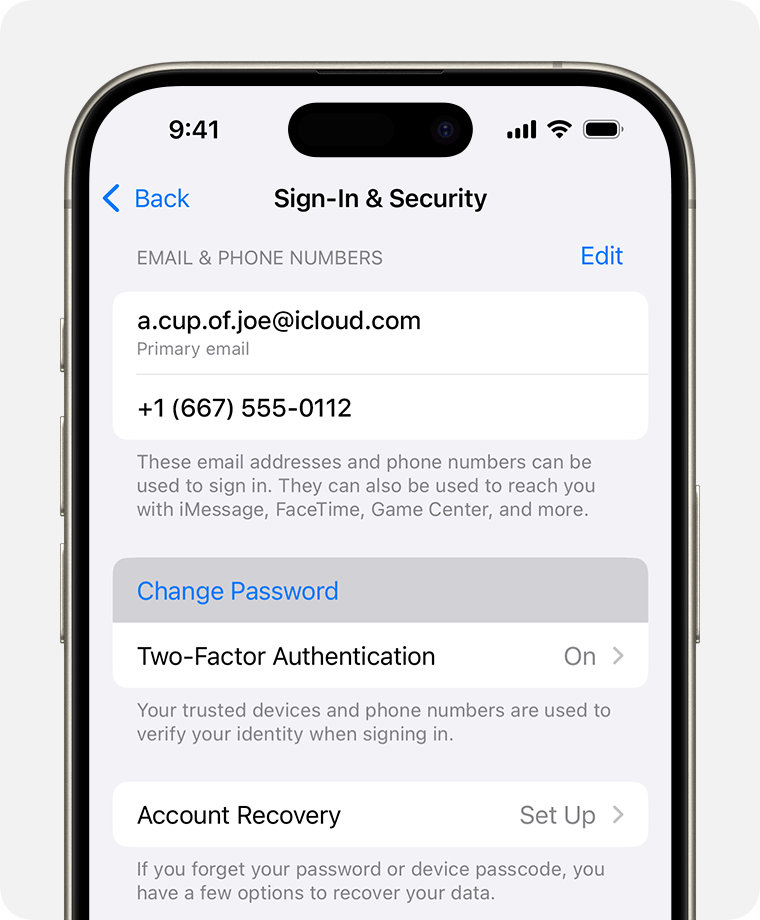
This is Apple’s built-in “undo” option, but it only works under one condition: you set the Screen Time passcode for your child’s device through Family Sharing.
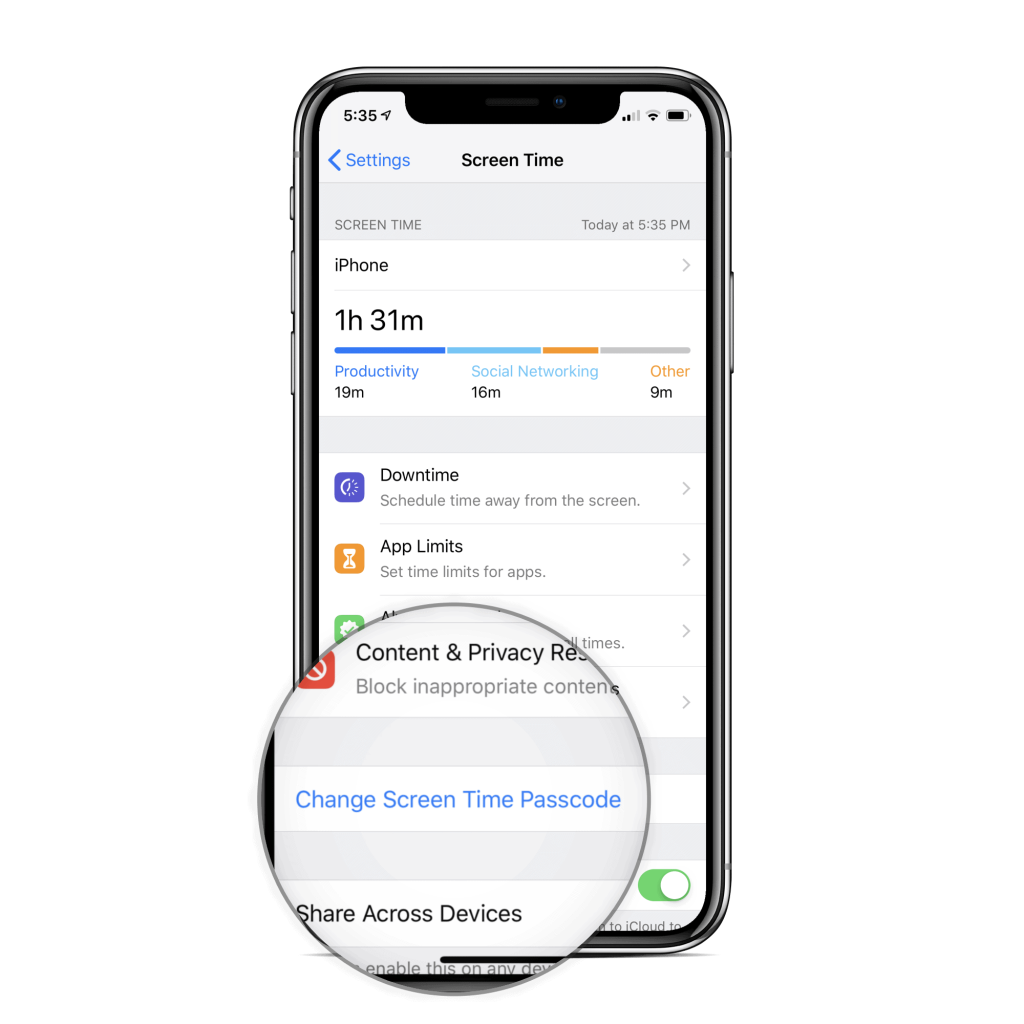
- On the restricted device, go to
Settings>Screen Time. Tap
Change Screen Time Passcode.Tap
Change Screen Time Passcodeagain.Select
Forgot Passcode?.You’ll be prompted to reset it using your Apple ID credentials.
Pros: Official, secure, and reliable.
Cons: Extremely limited applicability (requires Family Sharing setup).
Method 3: Use a Third-Party Removal Tool (The Most Efficient Option)
This is currently the most effective and least risky method for personal devices with a forgotten passcode. Tools like Tiger iOS Unlocker https://www.pocketechshare.com/tiger-ios-unlocker/ work by forcibly deleting the data structure of the Screen Time passcode.
Steps (using a typical tool as an example):
Download and install the dedicated removal tool on your computer.
Connect your locked iPhone/iPad via USB cable.
Launch the software and select the “Remove Screen Time Passcode” feature.
Follow the prompts to enter device recovery mode (the software will guide you).
Click “Start,” and the tool will automatically crack and remove the passcode within about 10 minutes.
Pros: Very high success rate; usually does not delete other data (e.g., photos, WhatsApp chats).
Cons: Requires a computer, and most reliable tools are paid (though cheaper than repair shops).

Recover Passcode Using a Backup Extractor
This is an unconventional “hacker” approach. If you have an iTunes or iCloud backup created before setting the Screen Time passcode, you can use third-party backup extractor tools to retrieve a file , which may contain an encrypted hash of the passcode. You can then use tools to attempt a brute-force crack on this hash.
Pros: Theoretically possible to recover the passcode without data loss.
Cons: Highly complex, requires technical skills, low success rate—not recommended for average users.
Conclusion
Try First: Methods 1 and 2 (if applicable).
Most Recommended: Method 3 (third-party tools)—highest success rate without data loss.
Remember: No matter which method you use, regular backups are the ultimate solution to all digital dilemmas!