Part 1: Can I Fix the Screen Malfunction Myself?
In many instances, you can resolve iPhone screen malfunction without professional assistance. This is especially true if the issue is related to software glitches or minor malfunctions. However, if your screen is cracked or shattered from a significant impact, seeking help from a professional is the best course of action.Part 2: 9 Methods to Fix iPhone Screen Malfunction
1. Restart your iPhone: A simple restart can often resolve minor software glitches that may be causing the screen malfunction. Press and hold either volume button and the side button until the power-off slider appears, then slide to power off. Wait a few seconds, then turn your iPhone back on.
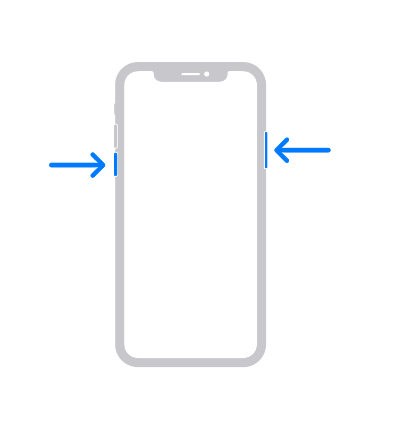
2. Force restart your iPhone: If a regular restart doesn't work, try force restarting your device. The procedure varies depending on your iPhone model. For example, on an iPhone X or newer, press and quickly release the volume up button, then do the same with the volume down button. Finally, press and hold the side button until the Apple logo appears.
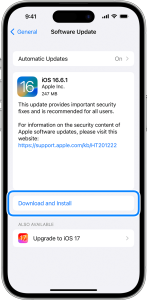
3. Check for software updates: Outdated software can sometimes cause screen malfunctions. Ensure that your iPhone is running the latest version of iOS by going to Settings > General > Software Update.
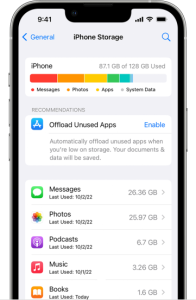
4. Free Up Storage: In some cases, lack of storage can cause screen non-responsiveness. Go to Settings > General > iPhone Storage.Scroll down the apps list and see which ones consume the most space and which ones are not needed. Delete apps that you no longer use to free up some space. Another thing you can try is transferring large videos to a cloud storage device or simply your pc.
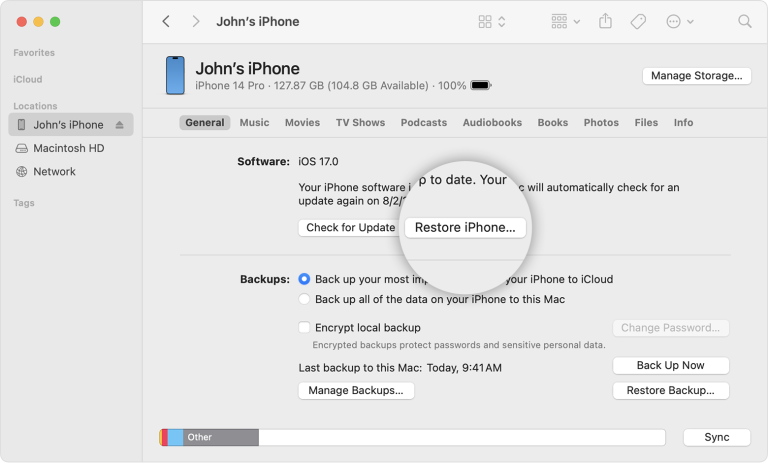
5. Restore iPhone using iTunes: If none of the previous methods work, you can try restoring your iPhone using iTunes. Connect your iPhone to a computer, open iTunes, select your device, and click on "Restore iPhone." This will erase all data on your iPhone, so make sure you have a backup.
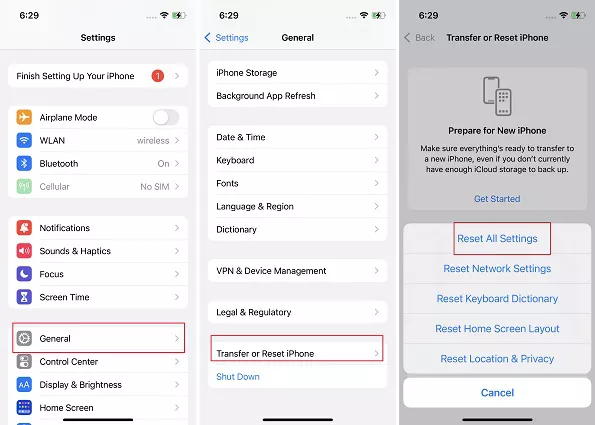
6. Reset All Settings: If all the previous fixes didn’t work, try resetting all settings. This will reset all of your iPhone’s settings to their factory defaults without affecting your personal data.Backup your iPhone data before proceeding to iCloud or your pc using iTunes. Go to Settings > General > Transfer or Reset iPhone > Reset > Reset All Settings. Enter your password and confirm.
7. Clean the screen: Sometimes, a non-responsive screen can be caused by dirt, dust, or fingerprints on the display. Gently wipe the screen with a soft, lint-free cloth to clean it.
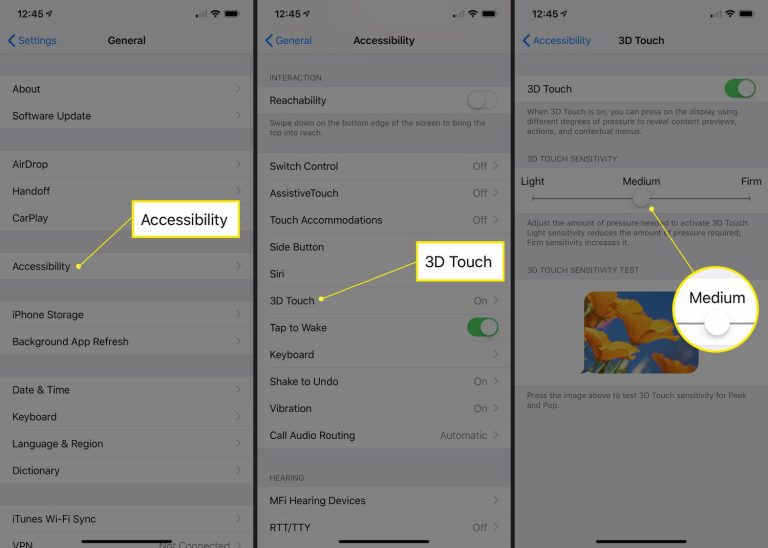
8. Adjust3D Touch: If you have an iPhone with 3D Touch (iPhone 6s and later), try disabling it temporarily. Go to Settings > Accessibility > Touch > 3D & Haptic Touch and adjust the sensitivity of "3D Touch."
9. Contact Apple Support: If none of the above methods work, reach out to Apple Support for further assistance. They can provide personalized troubleshooting steps or direct you to an authorized service center.