Open the Photos app on your iPhone, scroll down to Utilities, and tap Recently Deleted. Tap View Album, then use Face ID, Touch ID, or your passcode to unlock it.
Select the photos you want to restore, tap Recover, and confirm. The recovered photos will return to your photo library.

Deleted photos normally remain in the Recently Deleted album for 30 days before being permanently removed.
If you use iCloud Photos, you can also check the Recently Deleted album on iCloud.com.
Go to iCloud.com, sign in to your Apple Account, and open Photos. Select Recently Deleted from the sidebar, choose the photos you want to restore, and click Recover.

Photos in iCloud’s Recently Deleted album are also available for up to 30 days before they are permanently deleted.
If the photos are no longer in Recently Deleted and you do not have a usable backup, you can try Tiger Data Recovery.
It scans your iPhone for recoverable photo data and lets you preview the results before saving anything to your computer.
Step 1: Install Tiger Data Recovery
Download and install Tiger Data Recovery on your Windows PC or Mac, then open the program.

Step 2: Connect Your iPhone
Connect your iPhone with a USB cable and tap Trust if prompted.
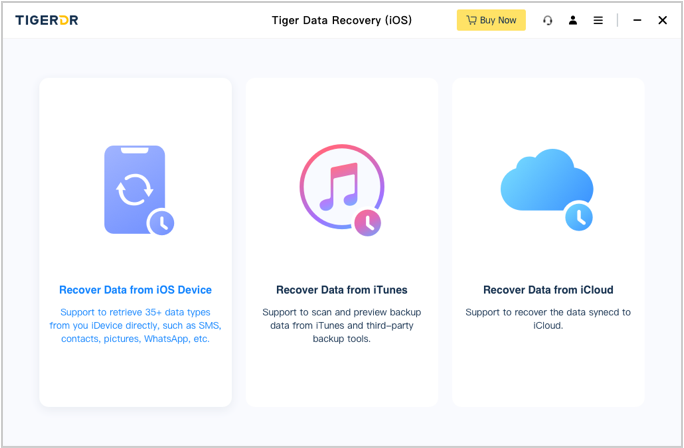
Once the device is detected, choose Recover from iOS Device.
Step 3: Scan for Photos
Select Photos, then click Start Scan.
You can also scan for messages, contacts, WhatsApp data, and other supported files at the same time.
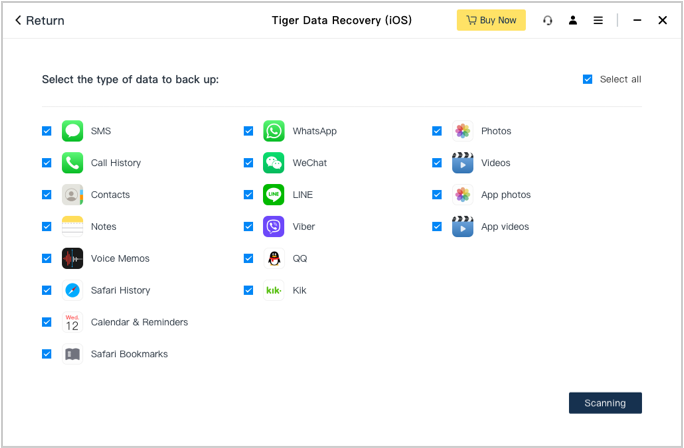
Step 4: Preview the Results
When the scan is complete, browse the photo thumbnails and use the available filters to find the images you need.

Step 5: Recover the Photos
Select the photos you want and click Recover to save them to your computer.
If your photos are still in Recently Deleted, Apple’s built-in recovery options are usually the quickest place to start. If they are no longer there and you do not have a usable backup, Tiger Data Recovery can help you scan your iPhone and try to recover the deleted photos.
We hope this guide helps you recover the photos that matter to you.