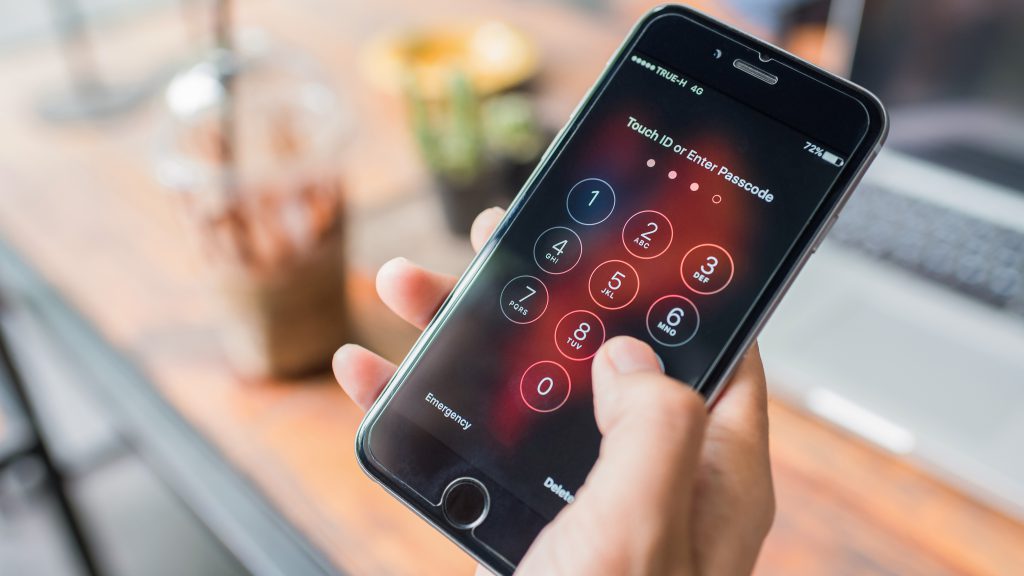
If you forgot your iPhone passcode, the short answer is: you can get back into your phone, but every method except one erases your data. You have five realistic options — a third-party unlock tool, a Finder/iTunes restore, an iCloud erase, the 72-hour previous-passcode window, or Apple Support. Which one is right for you depends on two things: whether you have a computer, and whether Find My iPhone is turned on. Here’s each method, what it costs you, and when it won’t work.
In this Article
ToggleMethod 1: Remove Passcode with Tiger iOS Unlocker
If you’ve forgotten your iPhone passcode and are locked out of your device, the frustration can feel overwhelming — especially if you don’t have access to iTunes or can’t remember your Apple ID credentials. Luckily, in 2026, there’s a smarter, faster solution that’s gaining massive popularity among iOS users:Tiger iOS Unlocker(https://www.pocketechshare.com/tiger-ios-unlocker/).
🔧 Key Features:
✔ 5-minute unlock – Fastest method for iOS 27
✔ No data recovery needed – Bypasses MDM/Screen Time
✔ 100% offline – Works without Wi-Fi
🔧 How It Works:
Download & install Tiger iOS Unlocker on your PC or Mac.
Connect your locked iPhone or iPad using a USB cable.
Choose the unlock mode (e.g. screen passcode, MDM bypass, etc.).
Follow the on-screen guide — the tool will handle the rest.
Within minutes, your device will be unlocked and ready to set up again.
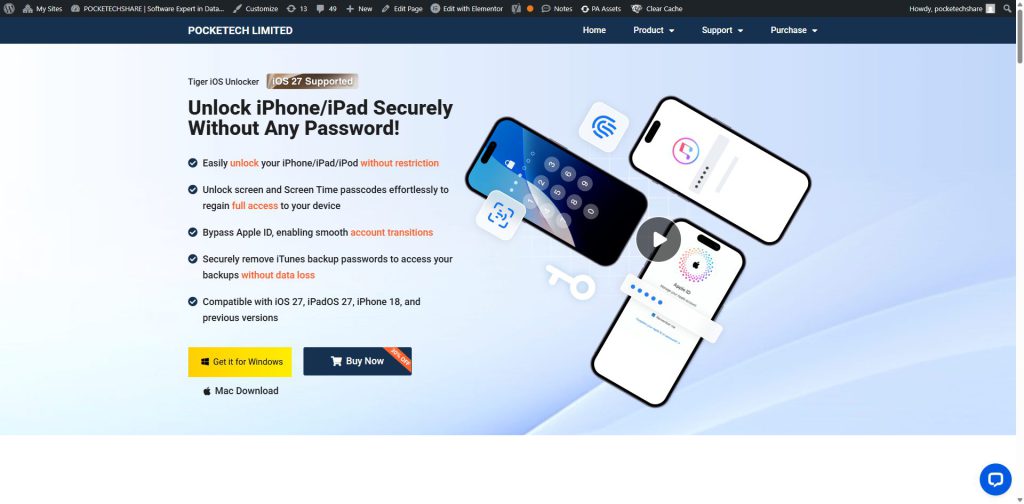
What our test looked like
We tested Tiger iOS Unlocker on an iPhone running iOS 26. The unlock itself ran unattended — once we confirmed the firmware download, the process from start to the setup screen took roughly 7 minutes, most of which was waiting for the firmware to download. As with every method below, the phone comes back factory-reset: anything not backed up is gone.
Method 2: Use Apple’s Official Restore via Finder or iTunes
This is Apple’s official method for resetting a locked iPhone.
Steps:
1. Connect Your iPhone: Connect your iPhone to a Mac or Windows PC.
2. Open the Required Software: Open Finder on a Mac, or the Apple Devices app on a Windows PC. Older systems may use iTunes.
3. Enter Recovery Mode: Put your iPhone into Recovery Mode by following Apple’s instructions for your specific iPhone model.
4. Choose Restore: When prompted, select Restore and follow the on-screen instructions.
✅ Pros: Free and officially supported by Apple
❌ Cons: Erases the data currently stored on the iPhone. If you have a backup, you can restore your data afterward.
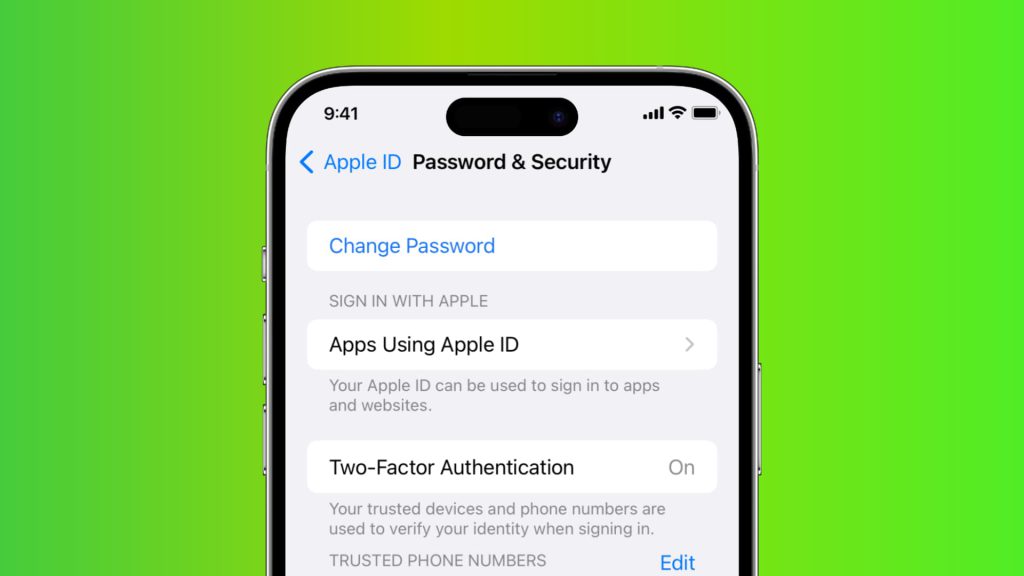
Method 3: Erase via iCloud (Find My iPhone Must Be Enabled)
If Find My was enabled before your iPhone was locked, you can remotely erase the device using another Apple device or iCloud.com.
Steps:
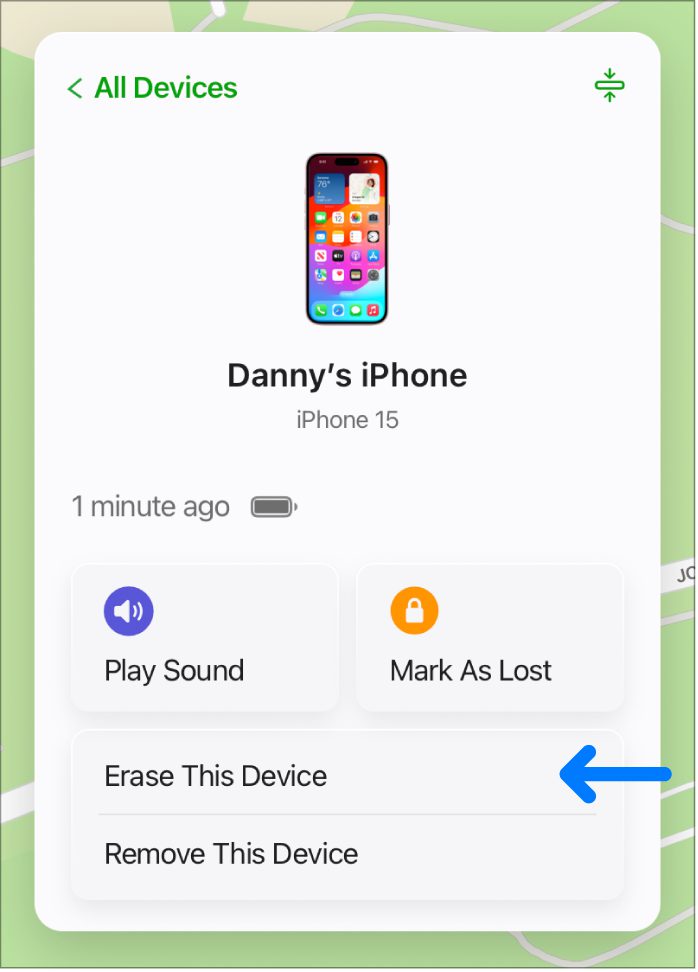
1. Open Find My: Open the Find My app on another Apple device, or access Find Devices through iCloud.
2. Select Your iPhone: Choose the locked iPhone from your device list.
3. Erase the Device: Select Erase and confirm with your Apple Account password.
✅ Pros: No computer required
❌ Cons: Erases the iPhone and requires Find My to have been enable
Method 4: Use Your Previous Passcode Within 72 Hours
If you recently changed your iPhone passcode and forgot the new one, you may still be able to use your previous passcode for up to 72 hours.
Steps:
1. Enter the wrong passcode five times until the iPhone Unavailable screen appears.
2. Tap “Forgot Passcode?”
3. Tap “Enter Previous Passcode.”
4. Enter your old passcode and create a new one.
✅ Pros: No data loss and no computer required
❌ Cons: Only available within 72 hours after changing the passcode
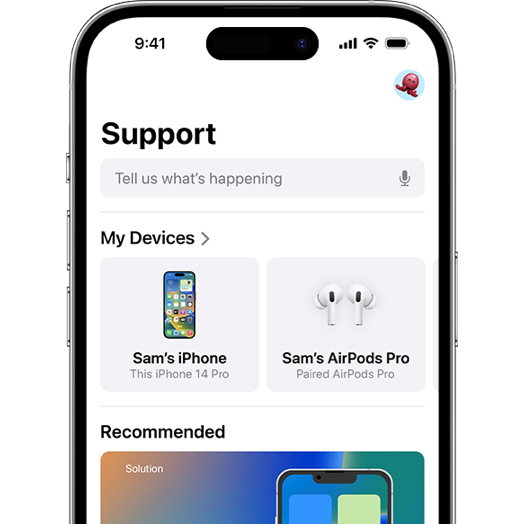
Method 5: Contact Apple Support (For Last Resort)
If none of the above works, you may need to verify ownership and request a reset directly from Apple.
Steps:
-
Prepare proof of purchase.
-
Contact Apple Support via support.apple.com.
-
Wait for approval to reset your device.
✅ Pros: Secure and official
❌ Cons: Slower, requires proof and approval
Final Verdict: Which Method Should You Use?
| Method | Speed | Data Loss? | Requirements |
|---|---|---|---|
| Tiger iOS Unlocker | ⚡ Fastest (5-10 min) | Yes | PC/Mac, USB |
| Finder/iTunes Restore | Medium (15-30 min) | Yes | Computer |
| iCloud Erase | Fast (if online) | Yes | Find My iPhone on |
| Reset via Another Device | Medium | Yes | Second Apple device |
| Apple Support | Slow (days) | Maybe | Proof of purchase |
Recommendation
Need speed? → Use Tiger iOS Unlocker.
Have a backup? → Try Finder/iTunes.
Find My iPhone on? → iCloud Erase.
No computer? → Reset via another device.
Don’t waste time—choose the best method for your situation and regain access to your iPhone today!
Conclusion
You May Also Like
Compare three safe and automatic ways to protect your iPhone photos from accidental loss.
View the Backup Methods →Explore four practical ways to regain access when you cannot remember your iPhone passcode.
Read the Guide →Learn how to regain access when too many incorrect passcode attempts leave your iPhone unavailable.
See the Solutions →