Last month my cousin picked up my phone to "check the time" — and I watched her thumb drift straight toward my WhatsApp. Nothing to hide, but that moment made me finally set up Chat Lock, and honestly, I should have done it a year ago.
WhatsApp's Chat Lock moves a conversation into its own hidden folder that only opens with your Face ID or fingerprint, and if you go one step further with a Secret Code, that folder disappears from your chat list entirely — it only shows up when you type the code into the search bar. Here's exactly how I set up both on my iPhone, the two settings most guides skip, and what to do if you ever forget your code.

 Note
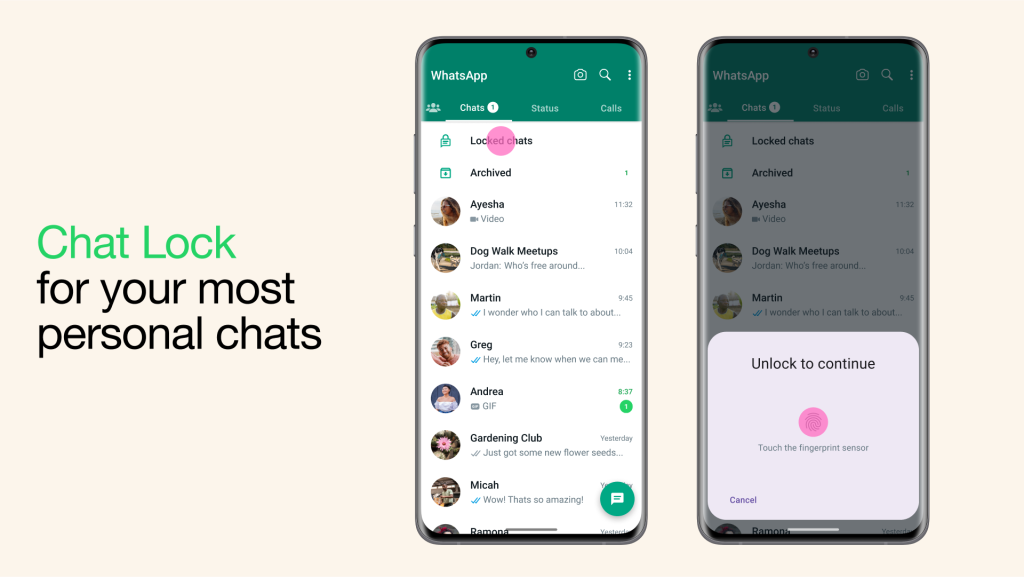
Note When you lock a chat, it is moved to a separate folder and can only be accessed by entering a password or using biometric authentication (such as Touch ID or Face ID).
The contents of the locked chat are also automatically hidden in notifications, too.
To use the Chat Lock feature on WhatsApp, follow these steps:
When you lock a chat, it is moved to a separate folder and can only be accessed by entering a password or using biometric authentication (such as Touch ID or Face ID).
The contents of the locked chat are also automatically hidden in notifications, too.
To use the Chat Lock feature on WhatsApp, follow these steps:
 Note
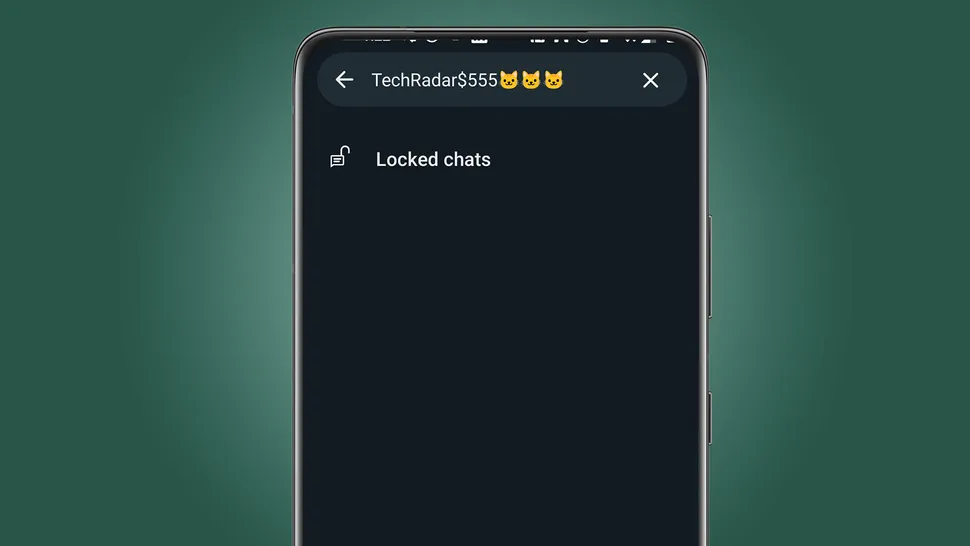
You have the option to hide the Locked Chats folder from your chat list, so it can only be discovered by typing your secret code in the search bar.
It is important to choose a strong and memorable password for your Secret Lock to ensure the privacy of your locked chats.
How to create a WhatsApp Secret Code:
Note
You have the option to hide the Locked Chats folder from your chat list, so it can only be discovered by typing your secret code in the search bar.
It is important to choose a strong and memorable password for your Secret Lock to ensure the privacy of your locked chats.
How to create a WhatsApp Secret Code:
 How to hide your WhatsApp locked chats with a secret code
 PS. If you accidentally deleted your message on WhatsApp, you can follow this guide. Hope this Helps!
Down Load Here
PS. If you accidentally deleted your message on WhatsApp, you can follow this guide. Hope this Helps!
Down Load Here
 Conclusion
Protecting your private chats is crucial in today's digital age. Use WhatsApp's Chat Lock and Secret Code features to enhance security. Keep control of your online privacy, ensuring your conversations remain secure.
Conclusion
Protecting your private chats is crucial in today's digital age. Use WhatsApp's Chat Lock and Secret Code features to enhance security. Keep control of your online privacy, ensuring your conversations remain secure.
Part1. How to Lock WhatsApp Chats
WhatsApp offers a Chat Lock feature that allows you to lock individual chats and add an extra layer of security to your private conversations. This feature helps you keep your chats secure, especially when you share your phone with others or want to protect specific chats from being easily accessed.
Note
When you lock a chat, it is moved to a separate folder and can only be accessed by entering a password or using biometric authentication (such as Touch ID or Face ID).
The contents of the locked chat are also automatically hidden in notifications, too.
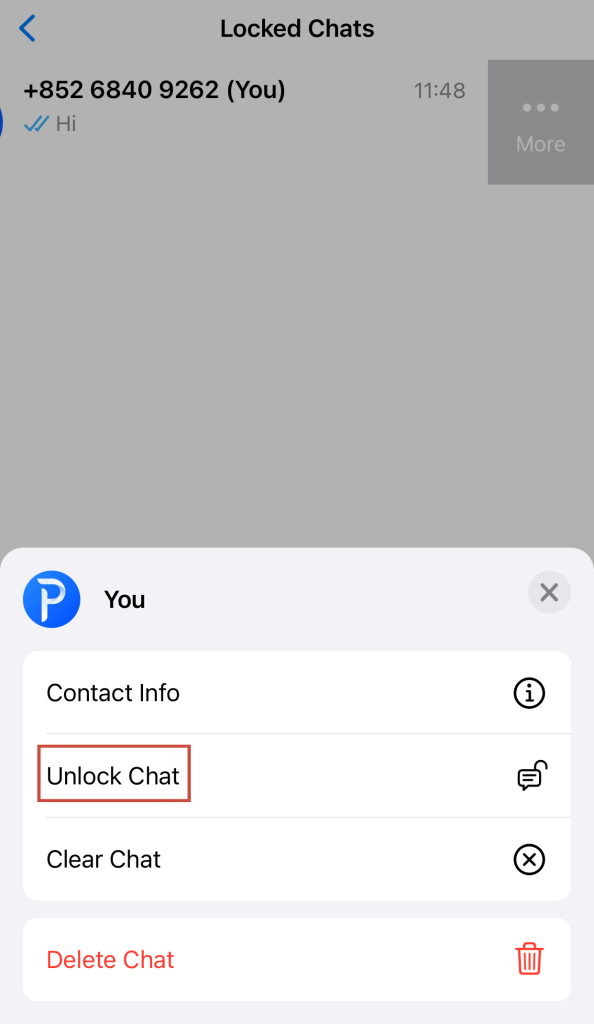
To use the Chat Lock feature on WhatsApp, follow these steps:
- Open WhatsApp on your device.
- Go to the chat that you want to lock.
- Tap on the name of the one-to-one or group chat to access the chat settings.
- Look for the Lock Chat option and select it.
- Set up Touch ID or Face ID· to lock the chat.
Part2. How to Create a Secret Code
Secret Lock is an additional feature introduced by WhatsApp to provide an extra layer of privacy for locked chats. With Secret Lock, you can set a unique password for accessing your locked chats, different from the password or biometric authentication used to unlock your device.
Note
You have the option to hide the Locked Chats folder from your chat list, so it can only be discovered by typing your secret code in the search bar.
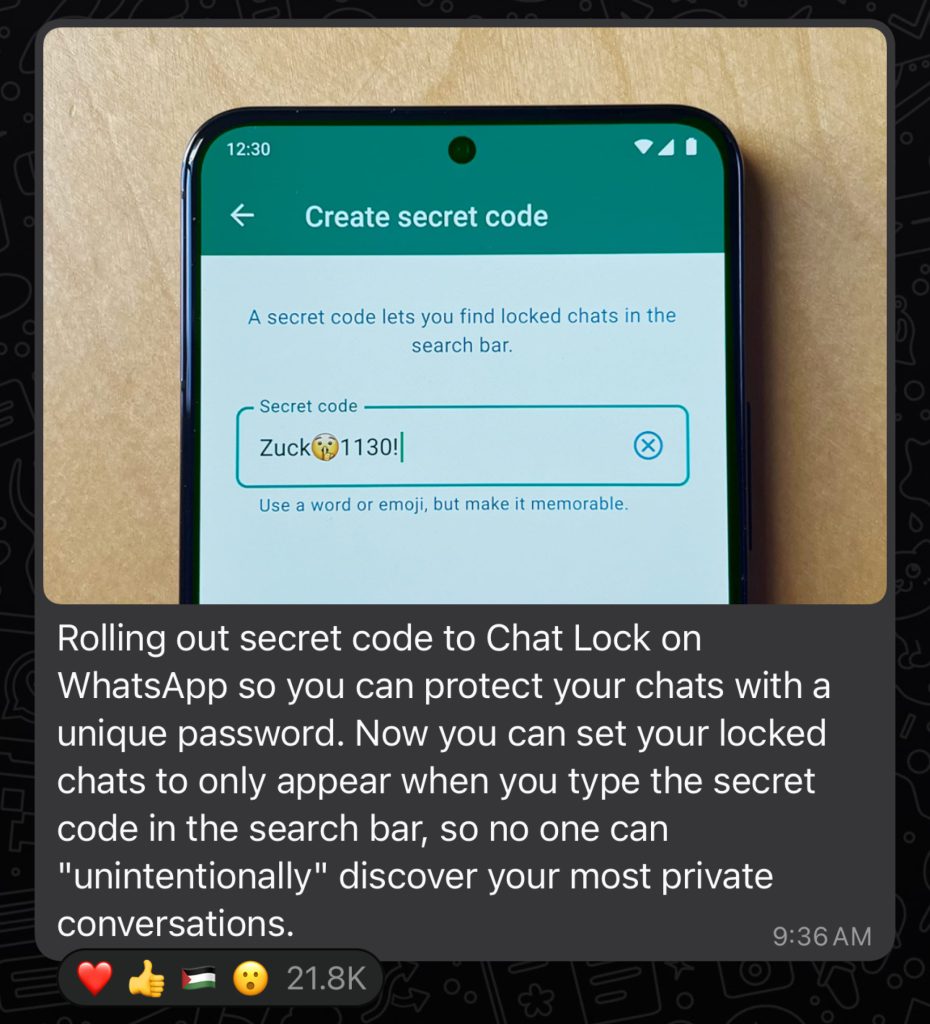
It is important to choose a strong and memorable password for your Secret Lock to ensure the privacy of your locked chats.
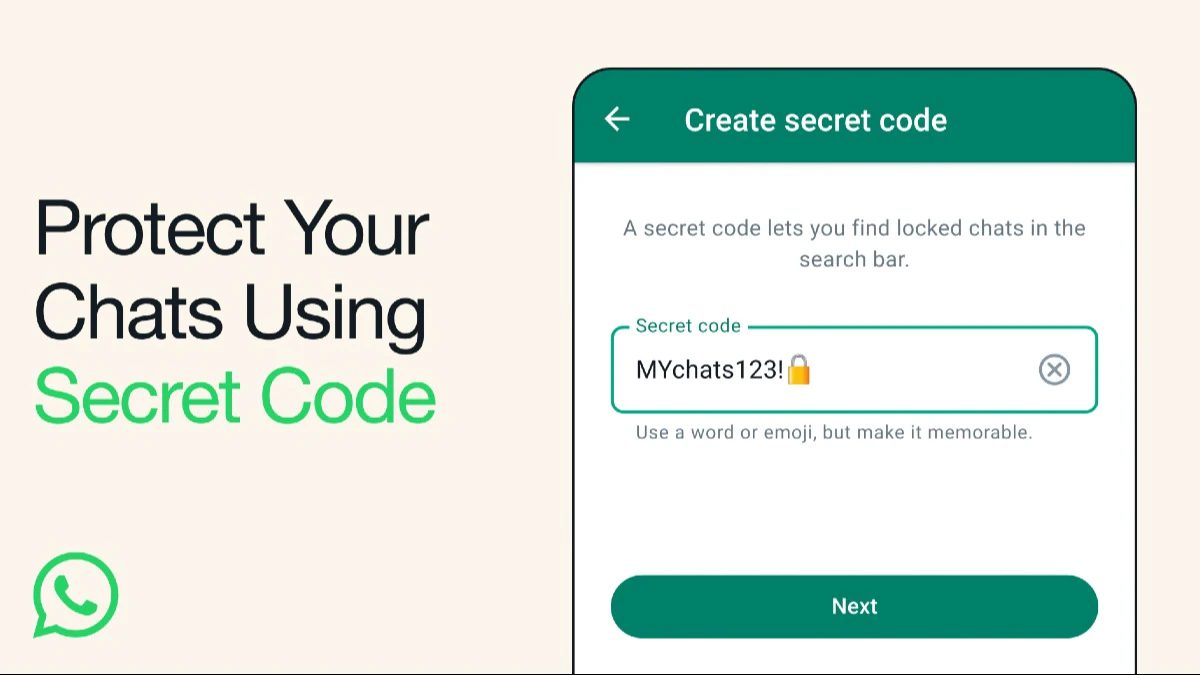
How to create a WhatsApp Secret Code:
- Open WhatsApp and find the Locked Chats folder in your chat list (you might need to swipe down).
- Tap on Settings.
- Choose Secret Code.
- Tap Create Secret Code.
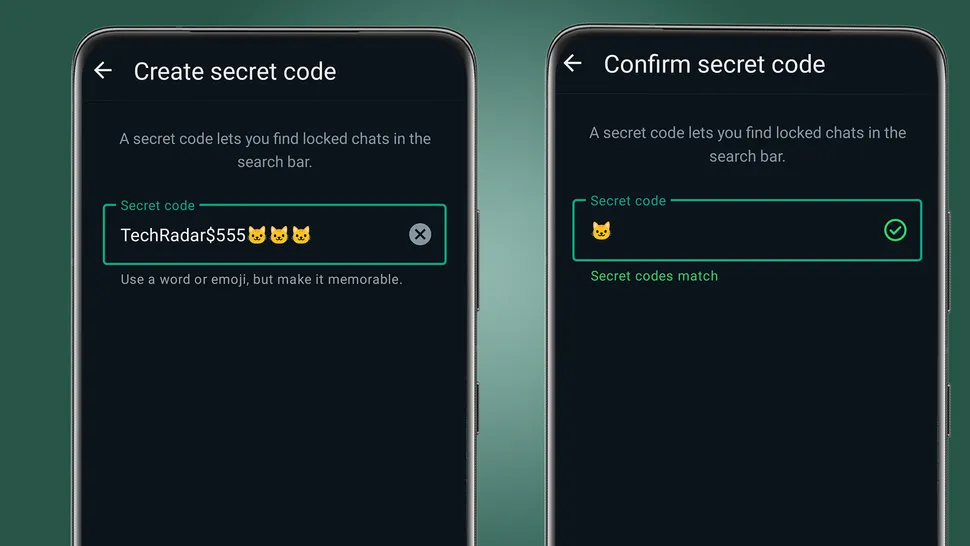
- Enter a code that's easy for you to remember, including numbers, letters, symbols, or emojis.
- Tap Next.
- Confirm your secret code.
- Tap Done.
- Now, your secret code is all set up!
How to hide your WhatsApp locked chats with a secret code
- Open WhatsApp and go to the Locked Chats folder in your chat list (swipe down if needed).
- Tap on Settings.
- Turn on Hide Locked Chats.
- Your Locked Chats folder is now hidden and won't show in your chat list.
- To access it, enter your secret code in the Search bar at the top of the chat list.
PS. If you accidentally deleted your message on WhatsApp, you can follow this guide. Hope this Helps!
Down Load Here
FAQs
Q1: Can I lock group chats? Yes — group chats support Chat Lock too. Long-press the group, tap Chat lock, and confirm. The group moves into your Locked Chats folder just like one-on-one chats. Q2:Is Chat Lock available for iOS and Android users? Yes, both iOS and Android users can enjoy Chat Lock on WhatsApp. But, not all phones are available for the Secret Code Feature. Q3: What if I forget my Secret Code? You can still open your locked chats with Face ID, Touch ID, or your phone's unlock method — the code isn't the only key. Once inside the Locked Chats folder, go to its settings and you can change or remove the Secret Code.
Conclusion
Protecting your private chats is crucial in today's digital age. Use WhatsApp's Chat Lock and Secret Code features to enhance security. Keep control of your online privacy, ensuring your conversations remain secure.
You May Also Like
Keep Your WhatsApp PrivateReview essential WhatsApp privacy settings and gain more control over who can see your personal information.
View the Privacy Guide → Back Up WhatsApp Chats on iPhoneProtect your important conversations by creating a WhatsApp chat backup on your iPhone.
Read the Backup Guide → Recover Old WhatsApp Messages Without a BackupFind out whether years-old WhatsApp messages can still be recovered when no usable backup is available.
Explore the Recovery Options → Facebook Twitter Youtube