In this digital age, screen recording has become an essential feature for many iPhone users. Whether you want to create tutorials, capture gameplay, or simply share your screen with others, being able to record your iPhone's screen with voice can be incredibly useful. In this article, we will explore four different methods to achieve this on your iPhone.
 next to Screen Recording. You can move this button by tapping the red button.
 , then wait for the three-second countdown.
3.Exit Control Center to record your screen.
, then wait for the three-second countdown.
3.Exit Control Center to record your screen.
 Note
Note Some apps might not allow you to record audio or video. You can't record your screen and use screen mirroring at the same time.
 at the top of your screen, then tap the Stop button
  . Or open Control Center and tap the red Record button
  .
If you can‘'t find these buttons, you can also tap the red table on the top-left of the screen to stop the recording
.
If you can‘'t find these buttons, you can also tap the red table on the top-left of the screen to stop the recording
How to Add Screen Recording Button
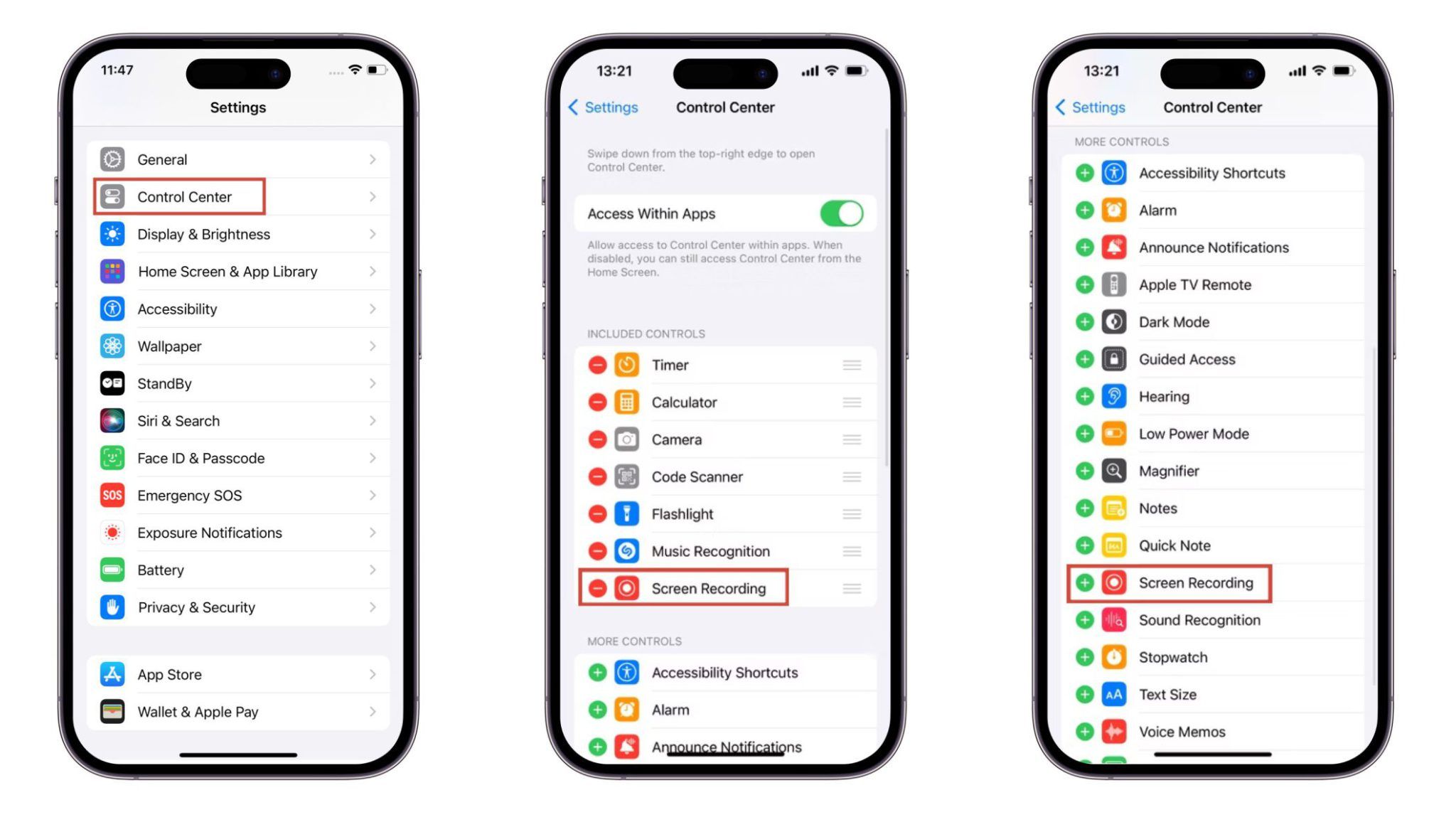
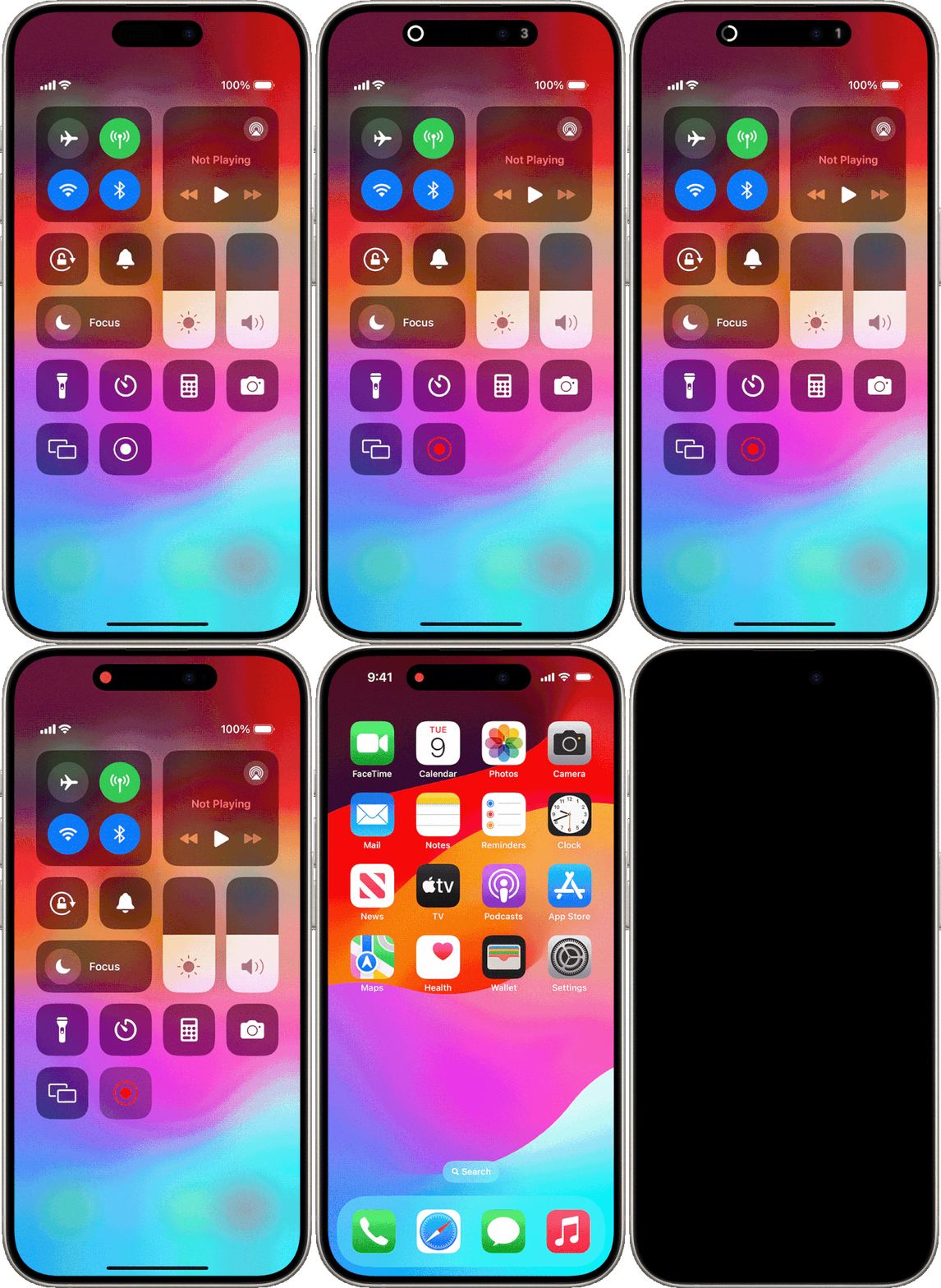
If you can't find Screen Recording button in Control Center, you can add the function via Settings. Go to Settings > Control Center, then tap the Add button next to Screen Recording. You can move this button by tapping the red button.
How to Screen Record on iPhone
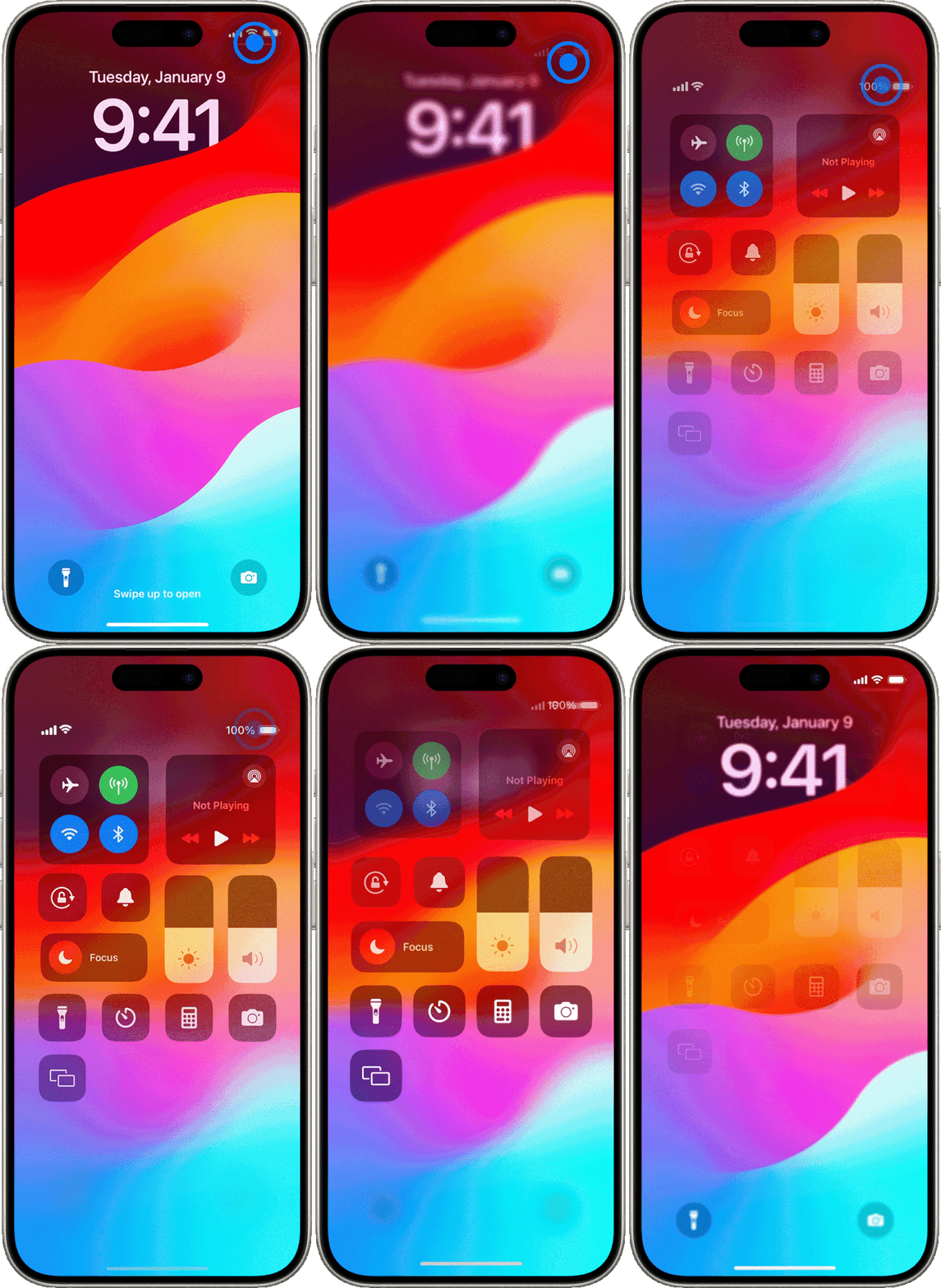
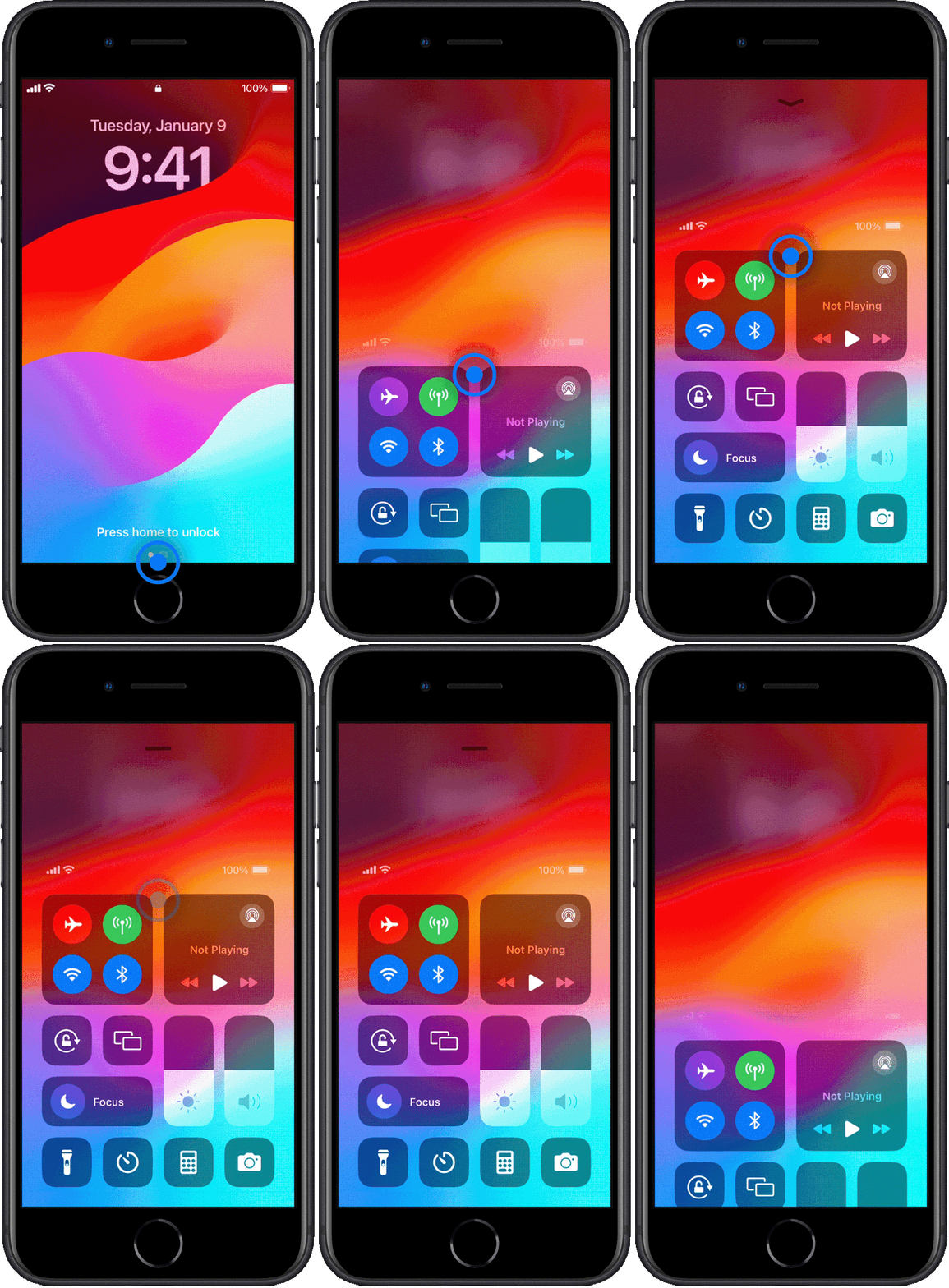
Once you have added the screen recording button to your Control Center, you can easily start recording your iPhone's screen with voice by following these steps: 1.Open Control Center on your iPhone.iPhone X and later
iPhone SE, and iPhone 8
swipe down from the top-right corner
swipe up from the bottom edge
2.Tap the gray Record button , then wait for the three-second countdown.
3.Exit Control Center to record your screen.
Note
Some apps might not allow you to record audio or video. You can't record your screen and use screen mirroring at the same time.
How to Stop the Recording
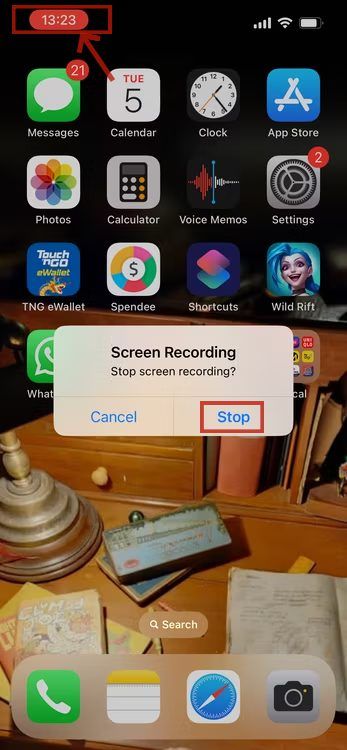
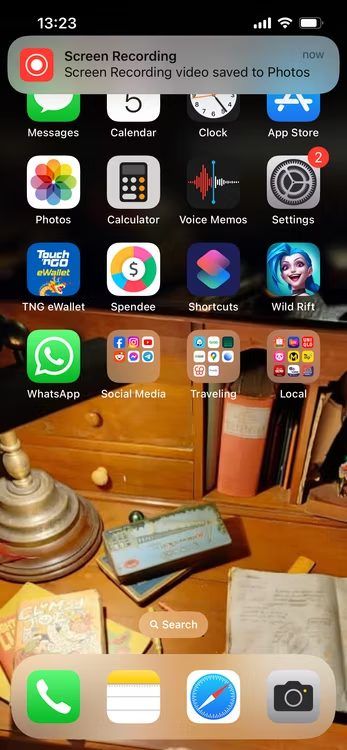
To stop recording, tap the Screen Recording button at the top of your screen, then tap the Stop button . Or open Control Center and tap the red Record button .
If you can‘'t find these buttons, you can also tap the red table on the top-left of the screen to stop the recording
How to Screen Record with Audio
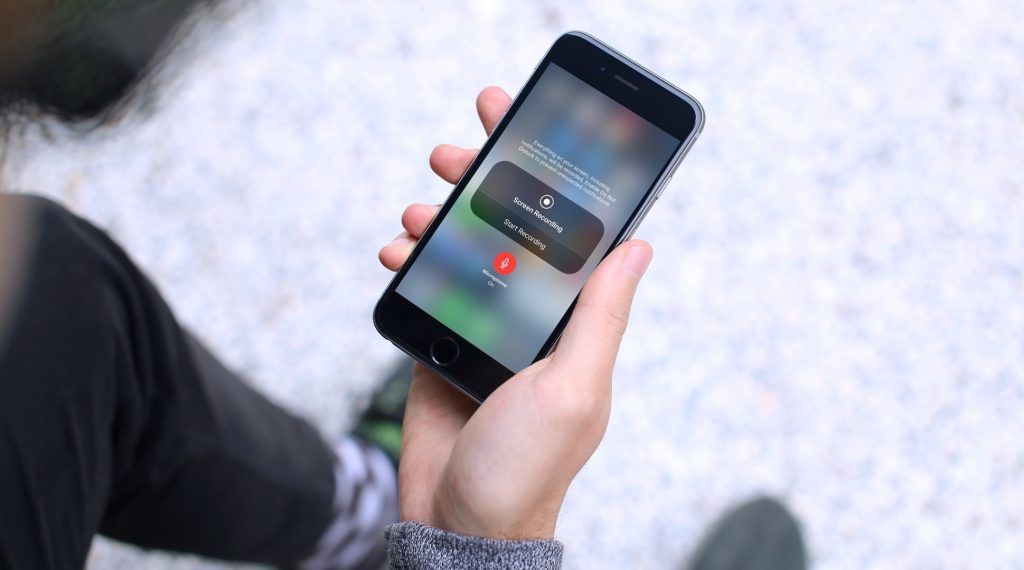
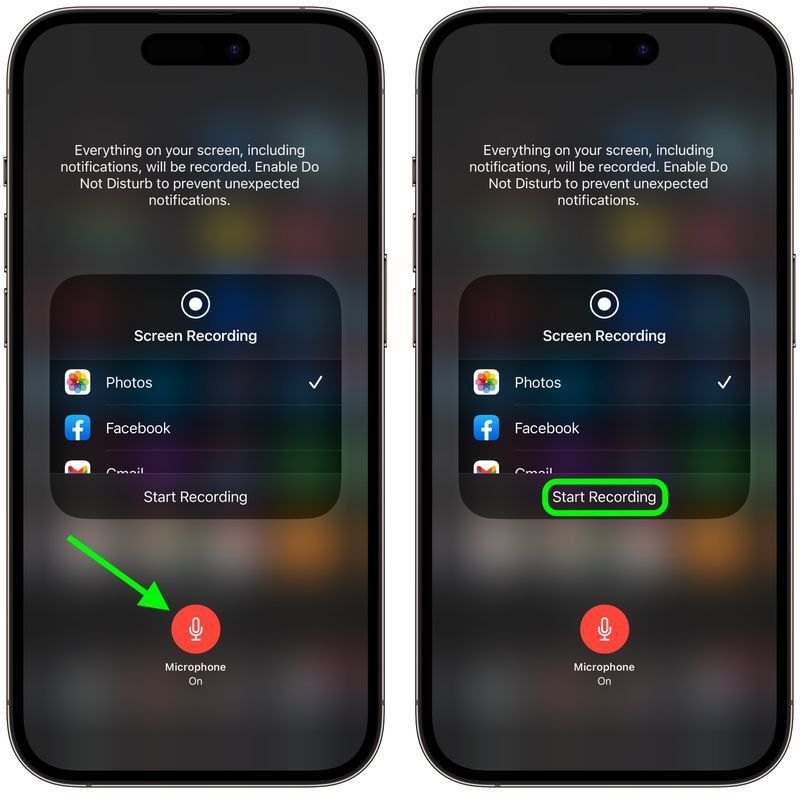
Do you want to record the screen with voice? Here are simple steps to do it. 1.Long-press the Record Button. 2.Tap the Microphone button so that it turns red and reads "Microphone On" you can chose to turn the sound on or off. 3.Selct an app from the lsit that you want to save the recording to. 4.When you're ready, tap Start Recording.