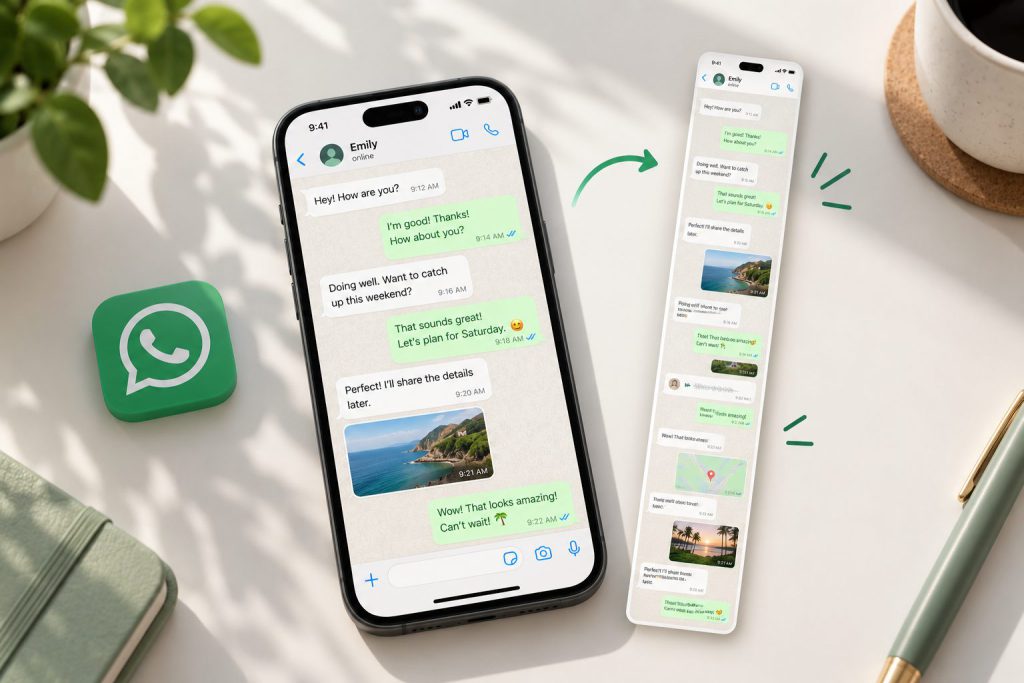
Want to save a long WhatsApp conversation as a single image? Normally, a standard iPhone screenshot only captures what is visible on your screen. Unlike Safari, WhatsApp’s regular chat interface does not support Apple’s full-page screenshot feature. WhatsApp has no native scrolling screenshot function, but there are three solutions.For more information about the iPhone’s built-in screenshot feature, read our guide on how to take a long screenshot on iPhone.
Method 1: Combine WhatsApp Screenshots Using Apple Shortcuts
If you only need to save a few screens of messages, Apple’s Shortcuts app offers a free way to combine them into one image.
This method doesn’t require a third-party screenshot app, although you’ll need to capture and arrange the screenshots manually.
Step 1: Screenshot the conversation
Scroll to the starting message in your WhatsApp chat. Press the Side button and Volume Up button, then release quickly to take a screenshot.
Scroll down and keep capturing screenshots with a small overlap between each frame to avoid missing messages, until you cover all the content you need.
Step 2: Combine Your Screenshots With Shortcuts
- Open the Shortcuts app on your iPhone.
- Tap the + button to create a new shortcut.
- Add the Select Photos action and enable Select Multiple.
- Add the Combine Images action.
- Set the arrangement to Vertically and adjust the spacing.
- Add Save to Photo Album as the final action.
- Run the shortcut, select your screenshots in the correct order, and save the result.
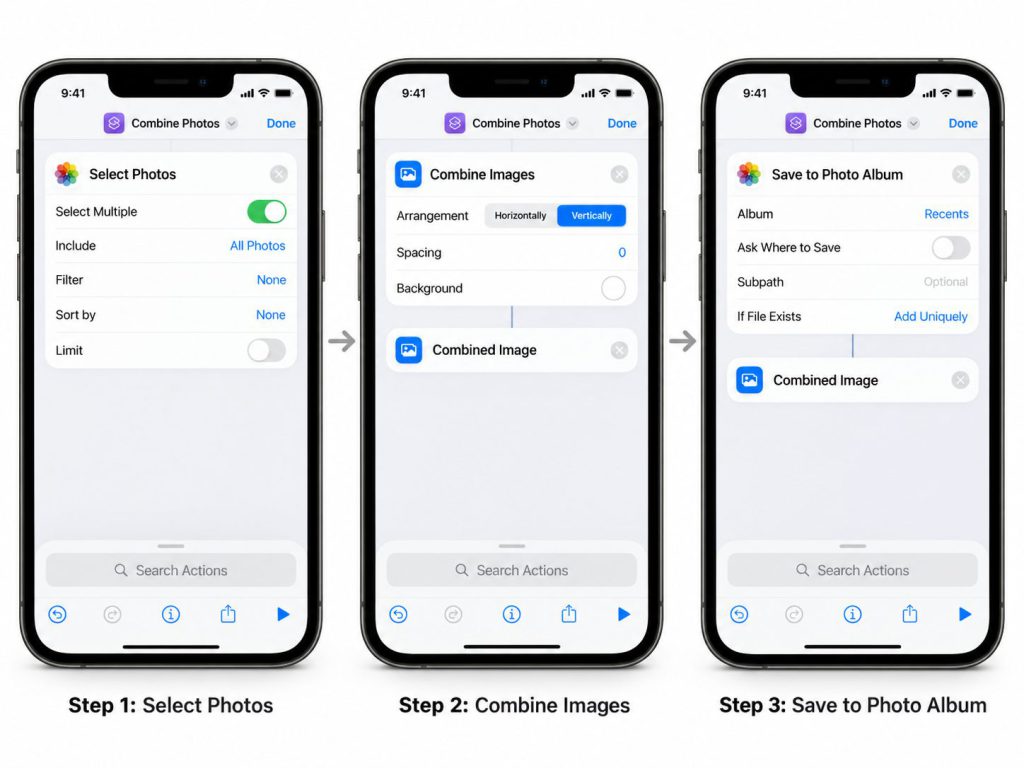
Keep in mind: The Combine Images action places screenshots together but doesn’t automatically remove repeated chat bubbles or overlapping areas. You may need to crop your screenshots before combining them.
For a short conversation, this is a practical free option. If you’re dealing with dozens of screens, taking and editing individual screenshots can become time-consuming.
Method 2: Turn a WhatsApp Screen Recording Into a Long Screenshot
Method 3: Export Your WhatsApp Chat Without Taking Screenshots
Sometimes you don’t need a screenshot at all. You simply want to save a conversation so you can read it later.
WhatsApp includes a built-in Export Chat feature that lets you save available messages as a text-based record, with optional media attachments.
This method doesn’t require a screenshot or a third-party app.
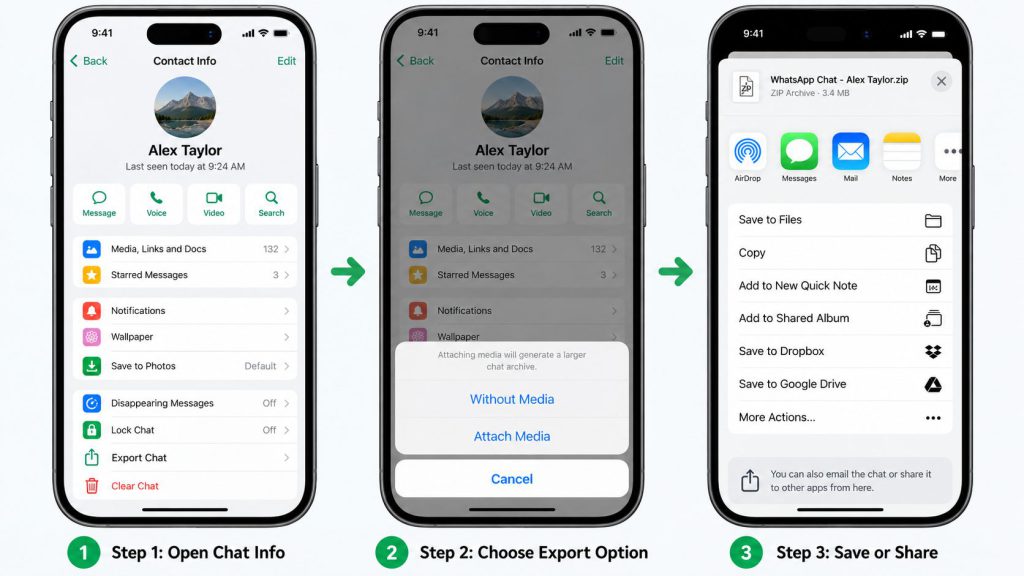
How to Export a WhatsApp Chat on iPhone
- Open WhatsApp and select the conversation you want to export.
- Tap the contact or group name at the top of the screen.
- Scroll down and select Export Chat.
- Choose Without Media or the option to include media.
- Use the iPhone share sheet to save the exported file to Files, send it by email, or share it with another supported app.
The exported data may be provided as a text file or a ZIP archive, depending on the export options and how you save it.
The text record generally includes message dates, times, sender names, and message content. If you choose to include media, available attachments may also be included.
However, Export Chat has two important limitations:
- It doesn’t preserve the original WhatsApp chat bubble layout.
- It isn’t a restorable WhatsApp backup and can’t simply be imported back as your chat history.
Also, WhatsApp may limit the amount of message history and media included in an export.
What If Export Chat Is Unavailable?
If you can’t find or use Export Chat, check whether the conversation has Advanced Chat Privacy enabled.
According to WhatsApp, this setting prevents participants from exporting the chat through WhatsApp’s built-in export feature.
Learn more about this restriction in our article on WhatsApp Advanced Chat Privacy.
If your real goal is to preserve messages for future restoration, rather than save a readable copy, see our guide on how to back up WhatsApp chats on iPhone.